
Appearance
Platform installation
This article explains how to deploy the platform to the server.
Installation procedure
Once the server is prepared and Ubuntu has been installed, you may begin the installation process.
💡 We recommend performing the installation prior to visiting the customer premises to avoid downtime.
To install the platform, follow these steps:
Connect to the server via Terminal:
bashssh vasadmin@x.x.x.xEnter the password you defined during OS installation. (This password will be changed during the installation)
Switch to root privileges:
bashsudo -ithen enter the passsword again.
Install CURL:
bashapt update && apt install curl -yDownload the Forxai installer:
bashcurl -o termix "https://nexus.kmrepo.eu:8443/termix"Modify the file to make it executable:
bashchmod +x termixLaunch the installer:
bash./termix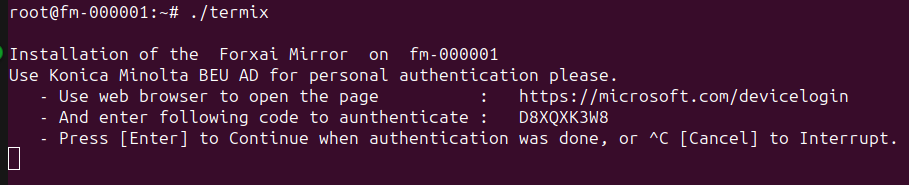
Follow the steps in the installer:
Double-click the code, then press Ctrl + Shift + C to copy it.
Ctrl-click the URL to open it in a browser.
Enter the copied code.
Log in using your standard Konica Minolta credentials (used to authenticate Windows).
Upon a successful authentication, return to the installer and press Enter.
⚠️ Repeat step 7 if you encounter a “Failed to obtain Azure AD token” error.
Wait for Teleport to be installed. This process should take about 2 minutes.
Select the version to install.
💡
Select the latest version of the platform unless instructed otherwise by the project delivery team.
You will be asked to start the installation of FORXAI Video Vision.
Verify the hostname is correct, then type in
Yesand press Enter.The installation will begin.
💡 This process should take approximately 20 minutes
You will receive an email confirming whether the installation was successful or not.
- a. Upon success, you will receive the credentials for the following accounts:
- platformadmin
- customeradmin
- customeroperator
- b. Platformadmin account is only meant for Konica Minolta usage. Customeradmin and customeroperator passwords should be forwarded to customer during handover. All accounts require change of the password on first login.
- c. Upon fail, follow the instructions in the email.
- a. Upon success, you will receive the credentials for the following accounts:
Once the installation is finished, launch the Video Vision platform by entering the IP address of the device running the platform into the address bar of a web browser.
You have successfully finished the installation process of the Video Vision platform.