
Appearance
Renew License
If the license has expired, the platform will be unavailable for use. To avoid service interruptions, you need to renew the license.
To renew the license, follow these steps:
Go to the KM Partner Portal and log in.
Select the applicable license in the list.
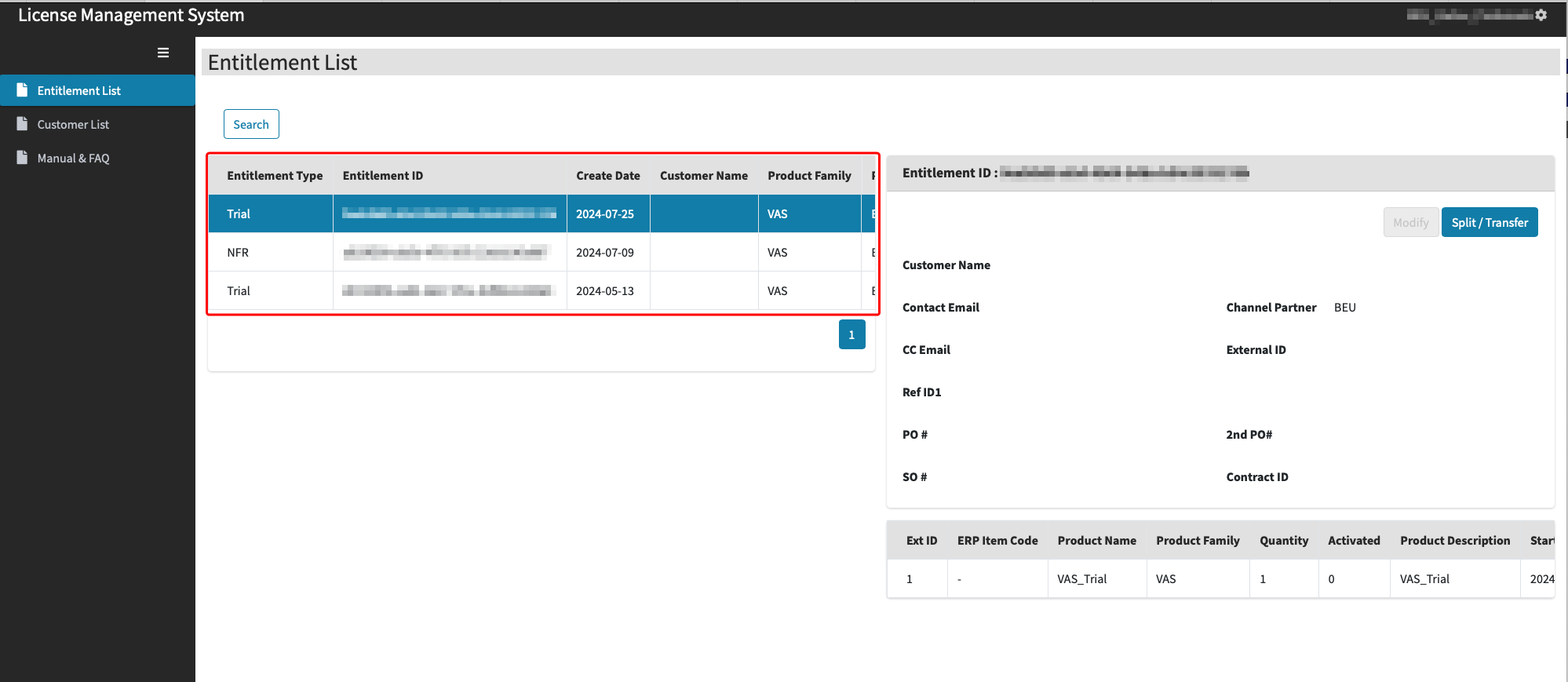
Click the Split/Transfer button.
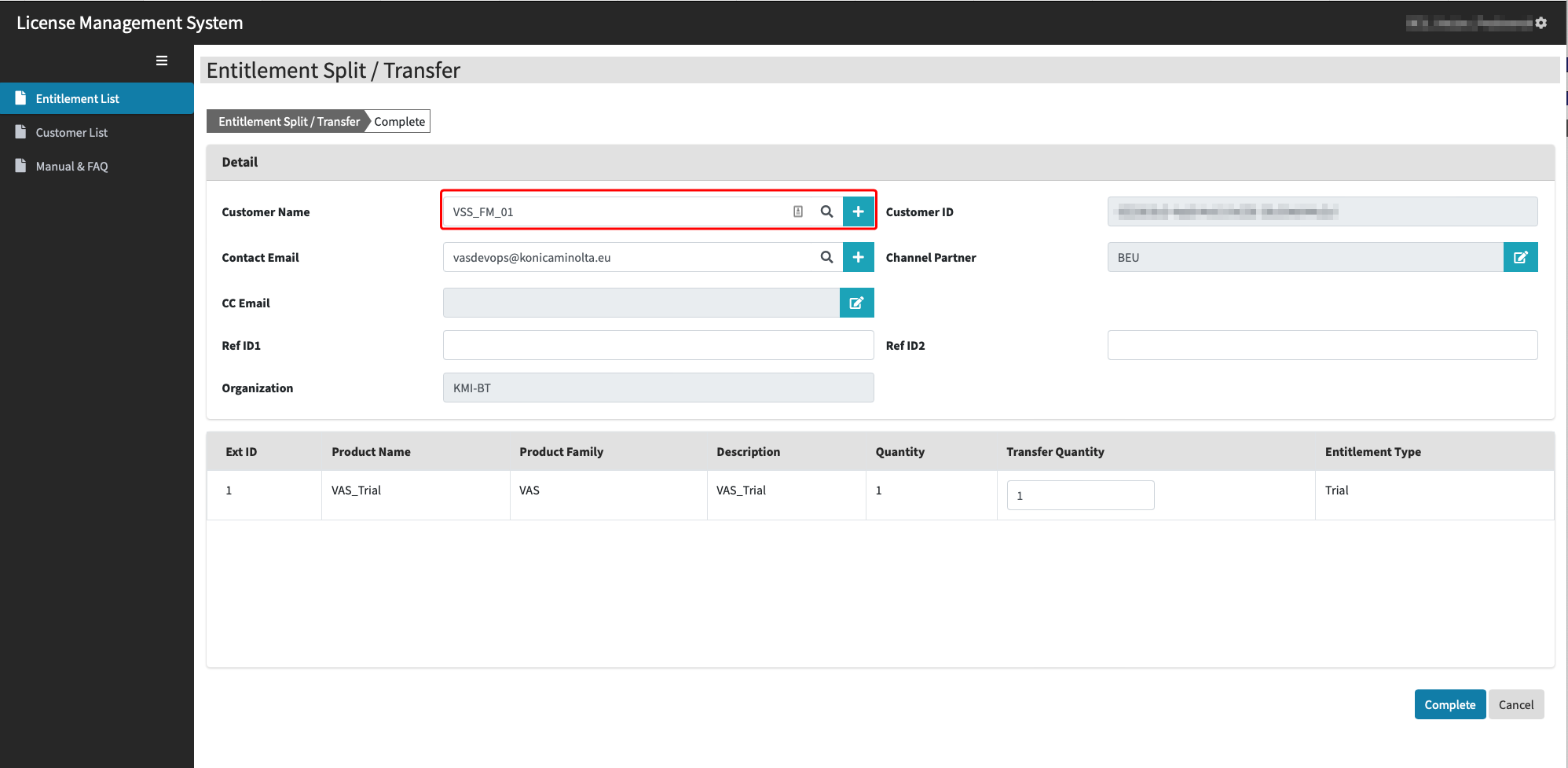
Fill in the appropriate customer into the Customer Name field.
⚠️
The license will be sent to the address in the Contact Email field. If you do not have access to this address, add one to the CC Email field.
- Click the Complete button.
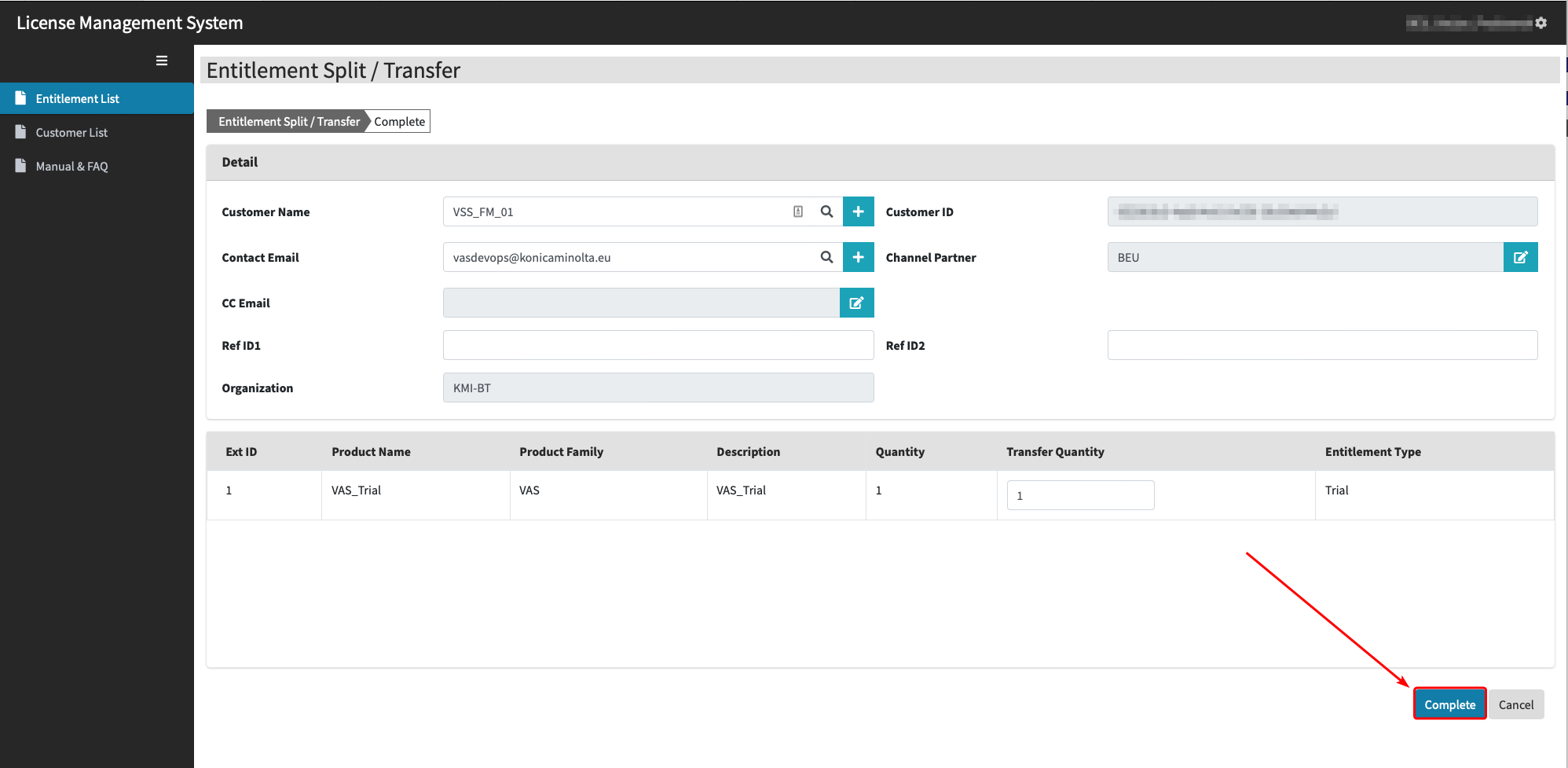
Log in to the KM License Management System using the EID received in the email.
Verify the information on the landing page is correct, then click Activate.
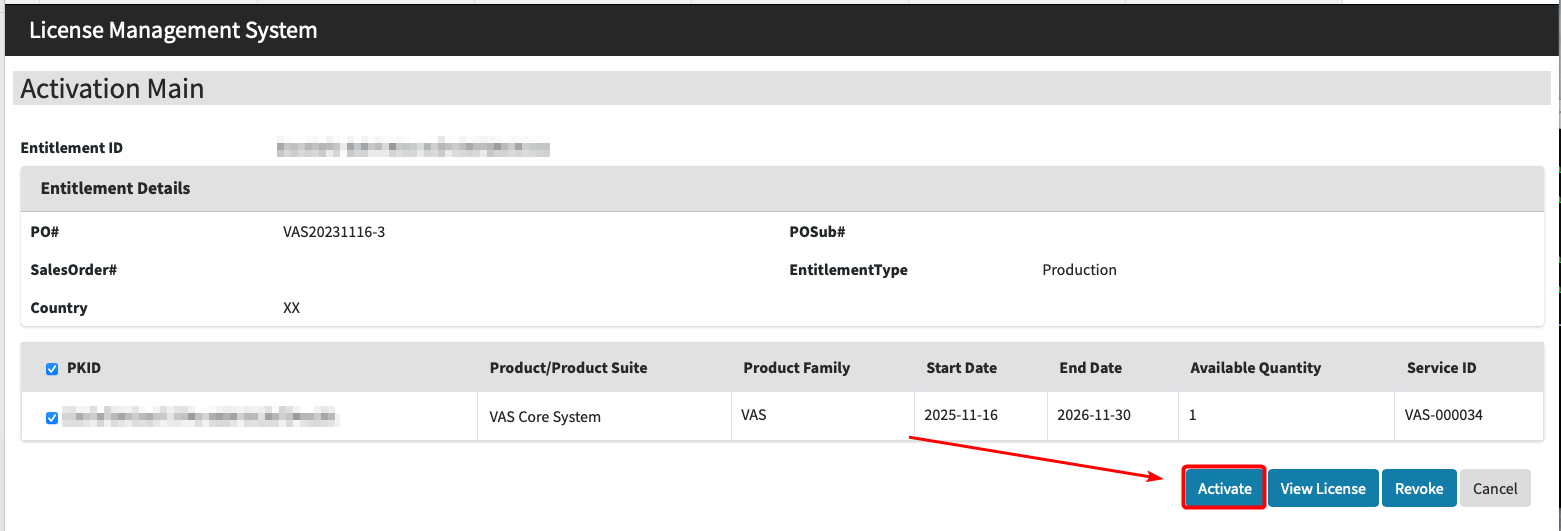
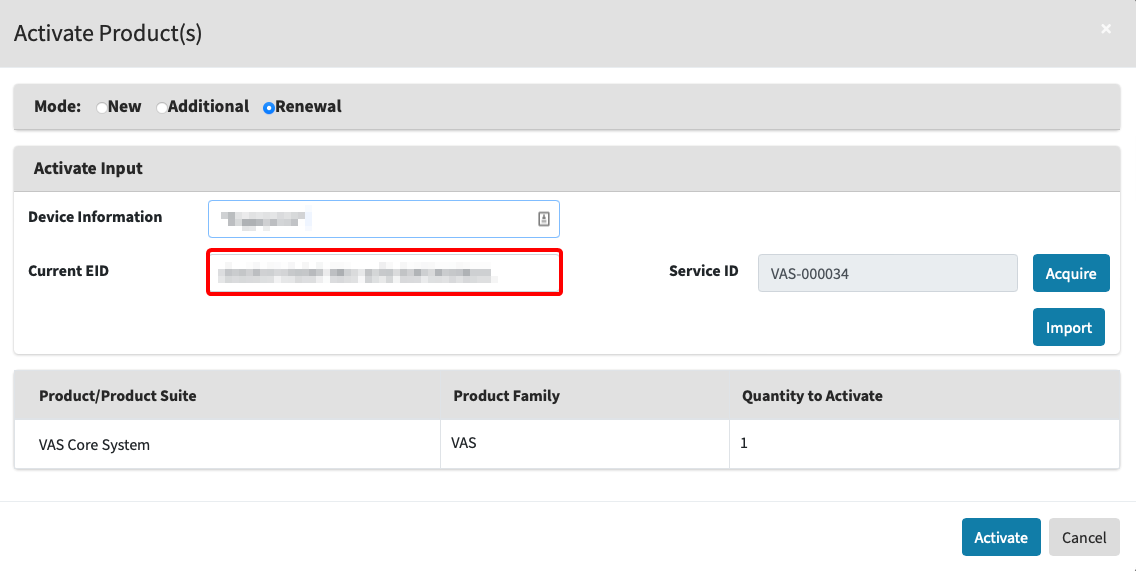
- Insert the EID of the license you want to renew into the Current EID field.
⚠️
The EID value must correspond to the original license. Please refer to the initial email sent at the time the license was first issued.
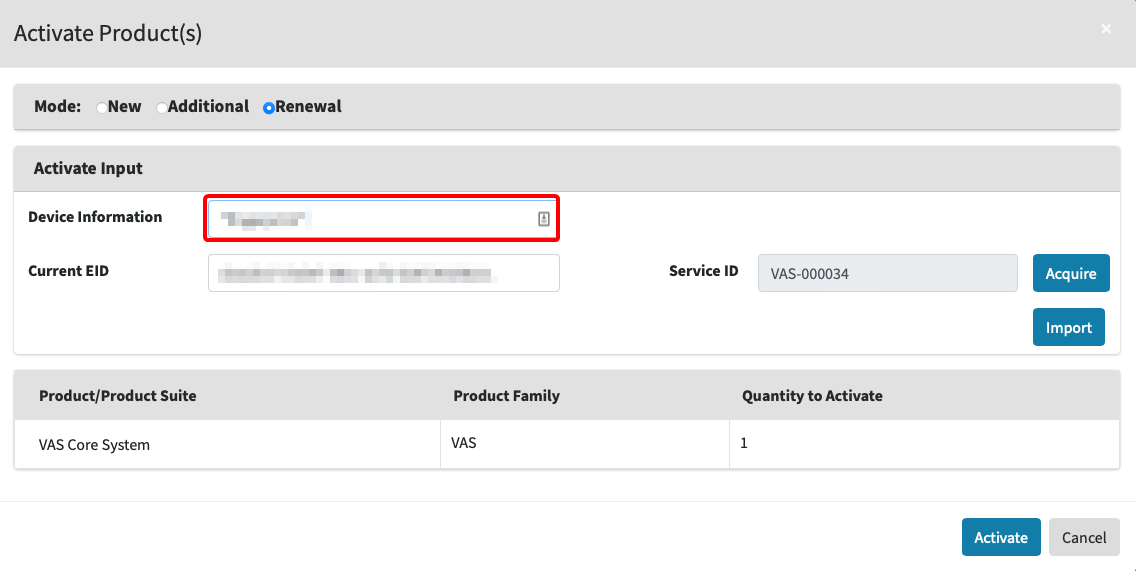
- Paste the Fingerprint value into the Device information field. You can copy the Fingerprint value you received during the Installation process. You can also obtain the fingerprint value from an already running machine at: /hub/licenses tab.
I don't know my Fingerprint
If you didn’t record the Fingerprint value during the installation, follow these steps:
Connect to the server via Terminal:
shellssh vasadmin@x.x.x.xEnter the password
vasadminSwitch to root privileges:
shellsudo -ithen enter the password again.
Enter the following command:
shell./termix --fingerprintCopy the machine fingerprint.
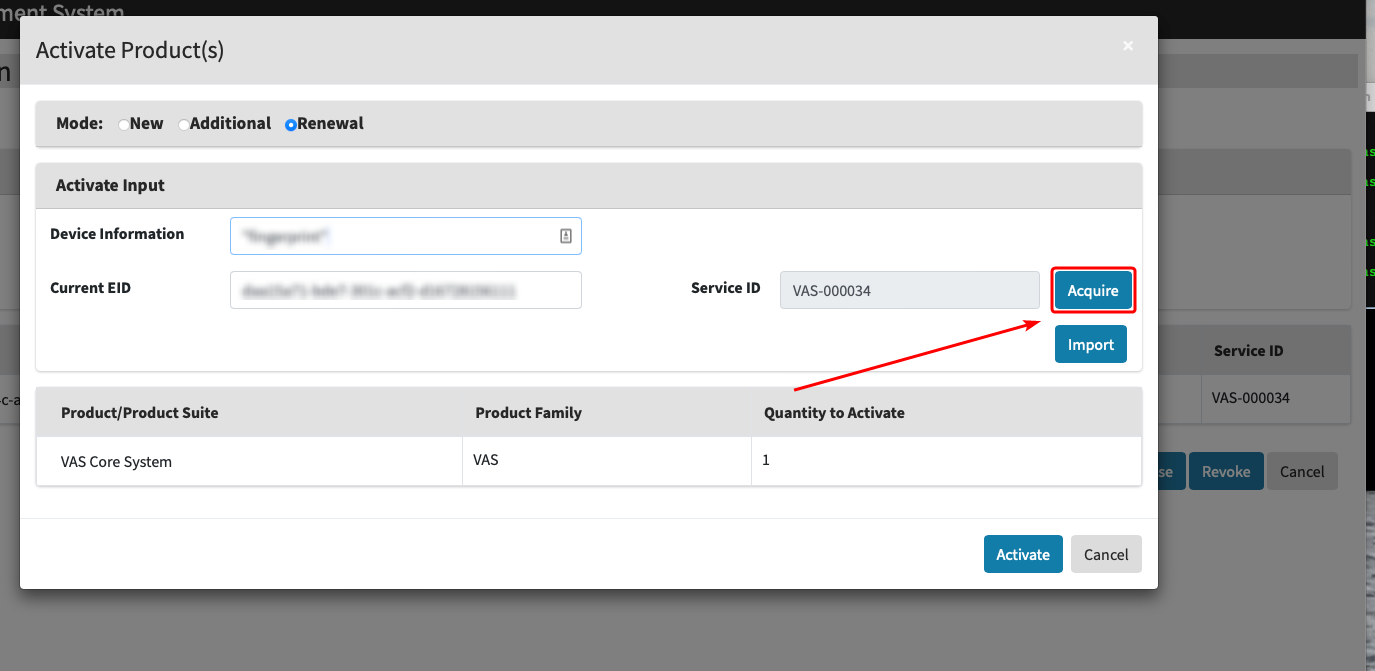
Click Acquire to generate a Service ID
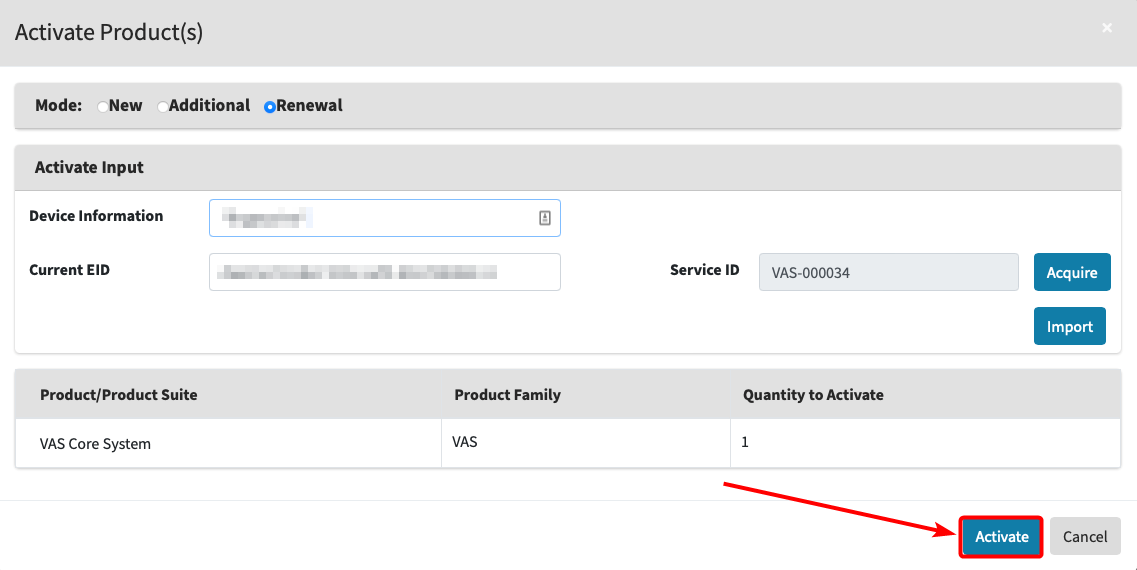
Click Activate.
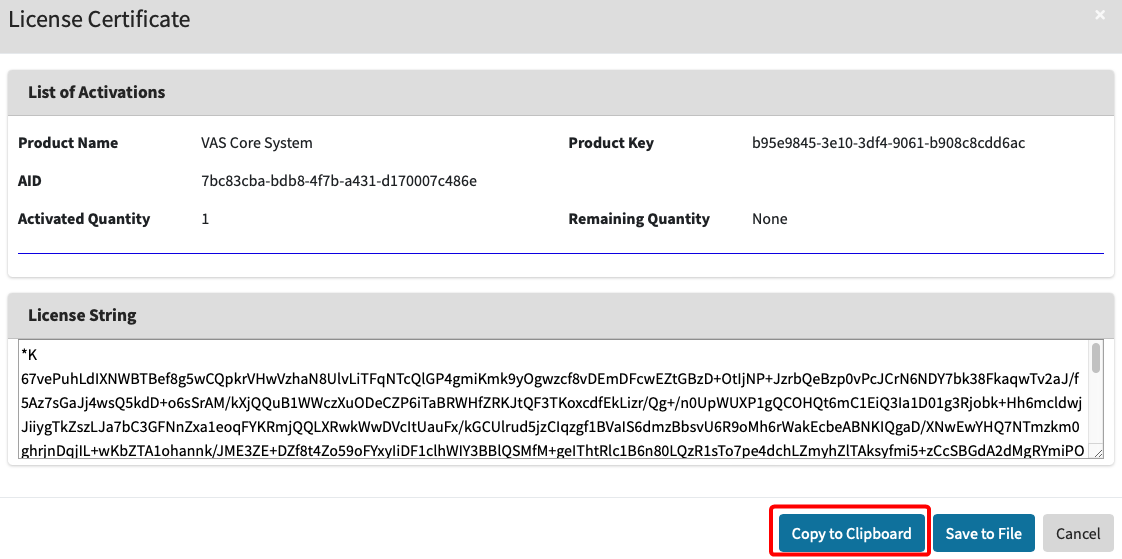
Click View License.
Click Copy to Clipboard to copy the License string.
Return to the FORXAI dashboard
Go to the Licenses tab.
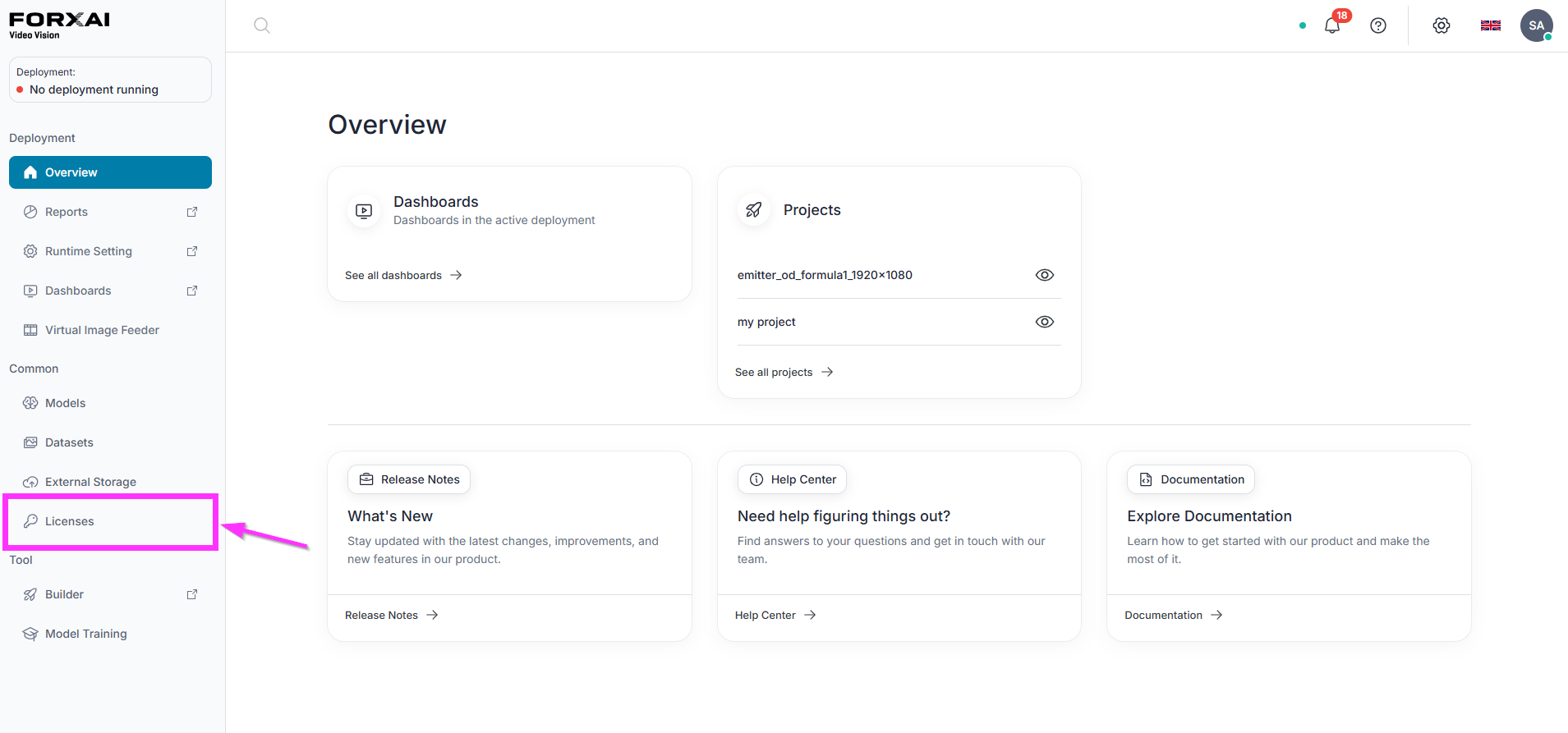
- Paste the License string into the License field, then confirm the activation by clicking the Submit button.
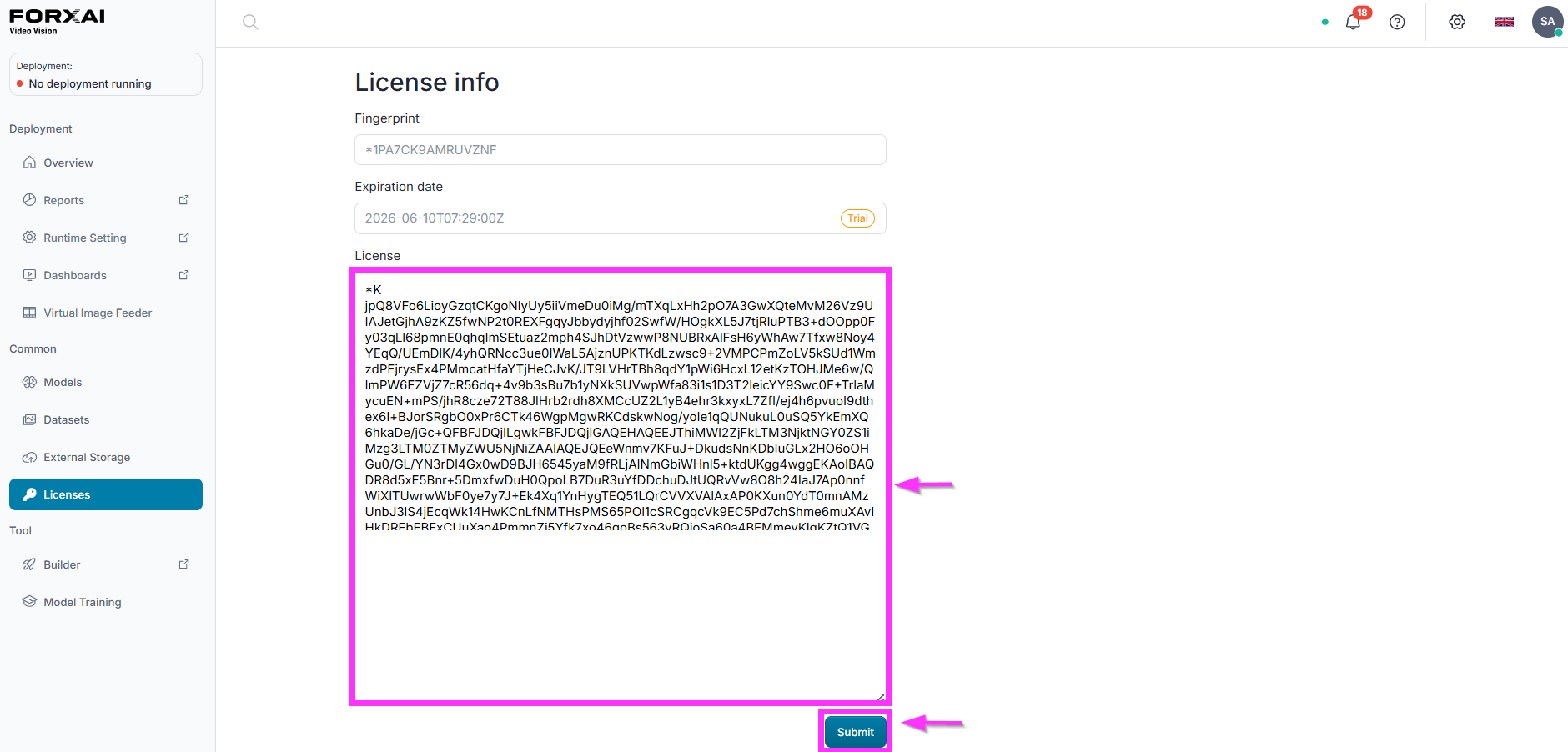
The license renewal process is complete. Verify that your license has been activated in the FORXAI application.