
Appearance
Notifications
Overview
Notifications provide real-time updates and alerts about the status of FORXAI Video Vision (FVV). They keep you informed about system health, deployment status, and the progress of background tasks.
Use Notifications to:
- Monitor the status of active deployments and potential errors.
- Receive alerts regarding device connectivity and license status.
- Track the progress of long-running operations like model training or reporting exports.
- Quickly access detailed information about system events.
💡 Tip
For notifications to function correctly, real-time communication must be enabled. Verify this by checking for a green light beside the notification icon in the top bar.
Accessing Notifications
To access notifications:
- Locate the notification icon (bell shape) in the top bar of the interface.
- If there are unread notifications, a red indicator showing the count will be visible.

Notifications icon with a red indicator showing the number of unread notifications. - Click the icon to open the Notification Popup for a quick view of recent events.
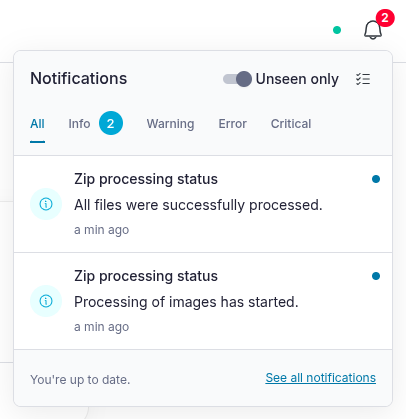
Opened notification overlay with a list of recent notifications. - Click See all at the bottom of the popup to navigate to the full Notifications page.
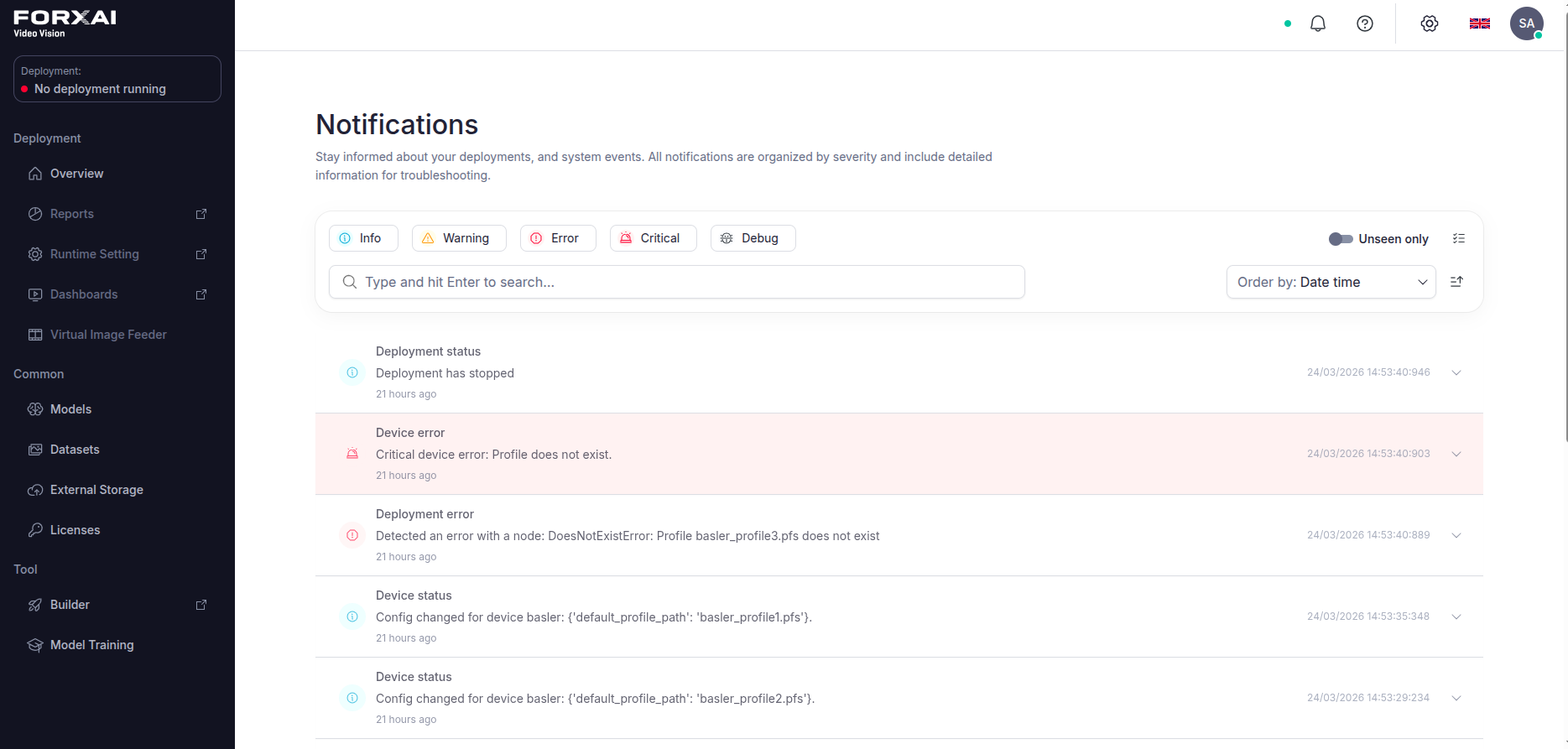
Overview of all notifications, including details.
Interface overview
The Notifications page provides a centralized view for managing all system messages.
| Element | Description |
|---|---|
| Search bar | Filter notifications by keywords or specific terms. |
| Severity filter | Show only messages of certain severities (e.g., only Errors and Critical issues). |
| Acknowledge all | Mark all currently filtered notifications as seen. |
Notification Severities
Notifications are categorized by severity level to help you prioritize system events:
- Critical: Urgent issues requiring immediate attention that may result in system failure, such as an external device being disconnected.
- Error: Significant issues that affect functionality, such as a node failed in the deployment runtime.
- Warning: Potential problems or important status changes that should be monitored.
- Info: General updates on system activities, such as the start or completion of model training.
- Debug: Detailed technical information primarily used for troubleshooting. These are typically hidden by default and need to be explicitly enabled.
Managing Notifications
Acknowledging Messages
When you receive a new notification, it contributes to the unread count. You can mark notifications as "seen" (acknowledge them) by:
- Clicking on a notification in the popup or on the Notifications page.
- Using the Acknowledge all button to clear multiple notifications at once.
Automatic Cleanup
To keep the system organized, notifications are automatically removed after a set period:
- General notifications: Automatically deleted after 7 days.
- Debug messages: Automatically deleted after 1 day.
Related links
How-to guides:
Reference: