
Appearance
Model Deployment
Model deployment is the final stage of the model training where you transition a successfully trained experiment into a usable model. Once deployed, the model becomes available in your local model store and can be integrated into your flows via the Builder application.
Best version deployment
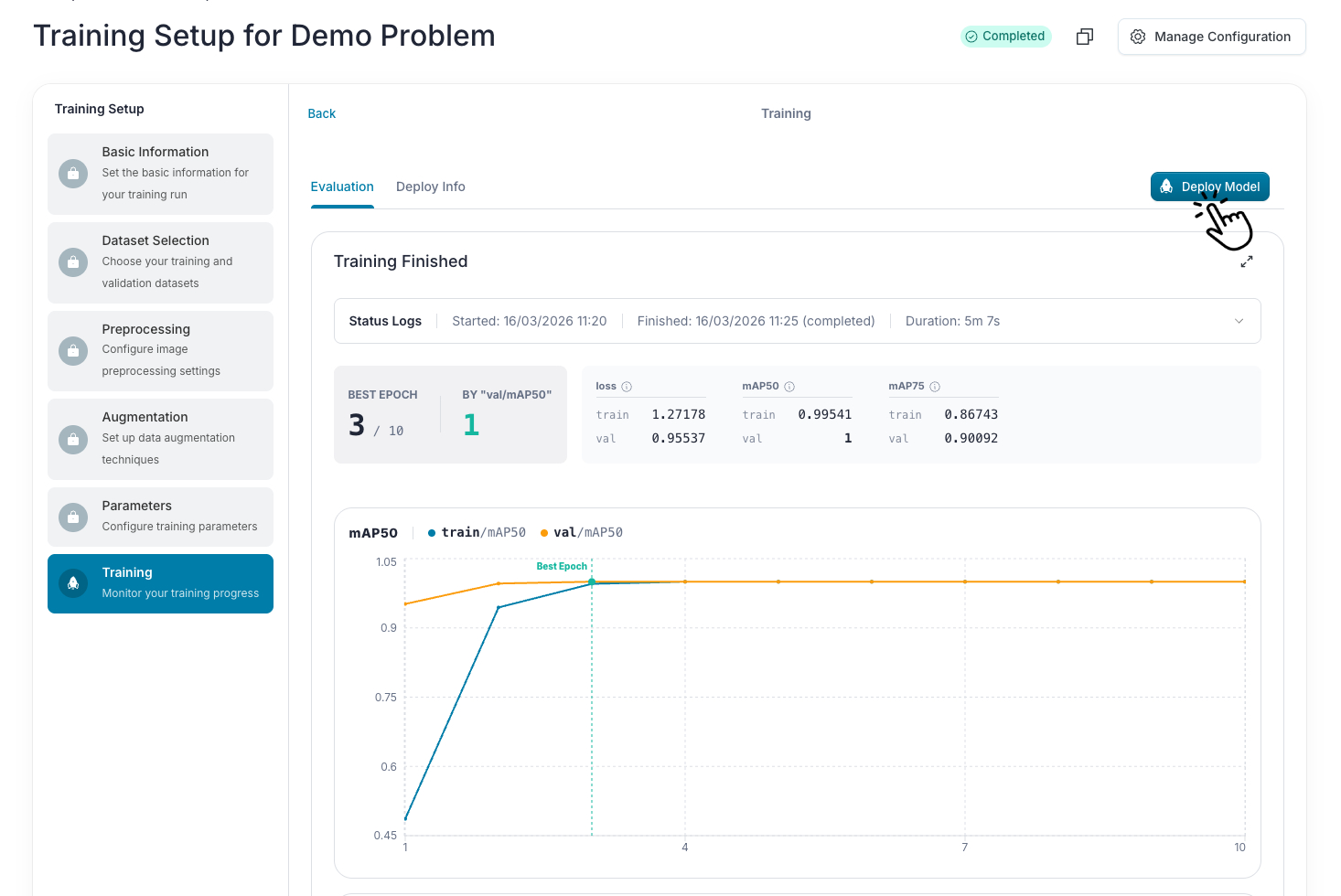
When you click Deploy, the system automatically selects the weights from the Best Epoch—the one with the highest performance based on the main metric defined in your experiment configuration.
The metrics in the Evaluation tab always reflect this best-performing version, which you should review before proceeding with deployment.
How to deploy trained model
The deployment process is designed to be seamless, allowing you to move from evaluation to deployment within a few clicks.
Configure deployment details
When you are satisfied with the metrics, click the Deploy Model button.
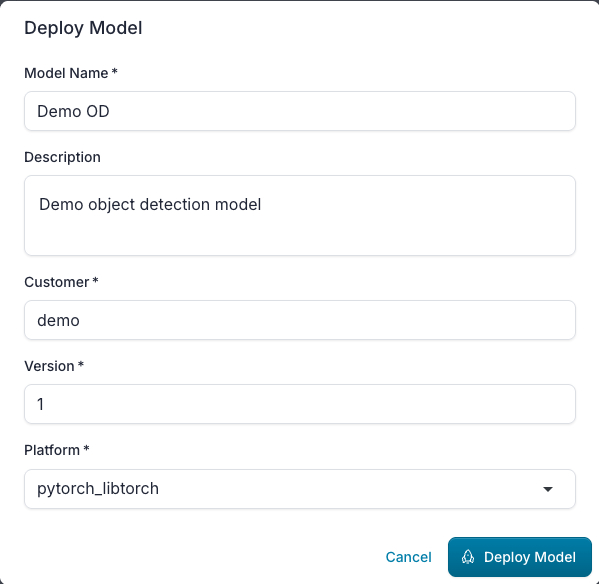
A dialog will open with the following fields:
- Model Name: The name for your deployed model (pre-filled from experiment configuration).
- Description: A brief description of the model (pre-filled).
- Customer: The customer associated with this model (pre-filled from workspace definition).
- Version: Use any whole number (like 1, 2, or 5).
- Note: You are in control of the numbering! You can start at version 10 or skip numbers if you like. The only rule is that the version number must be unique for that specific Model Name and Customer.
- Platform: The target platform for the model (currently limited to
pytorch_libtorch).
⚠️ Models that share the same name and customer but have different versions can not be used together within a single deployment.
Monitor deployment progress and history
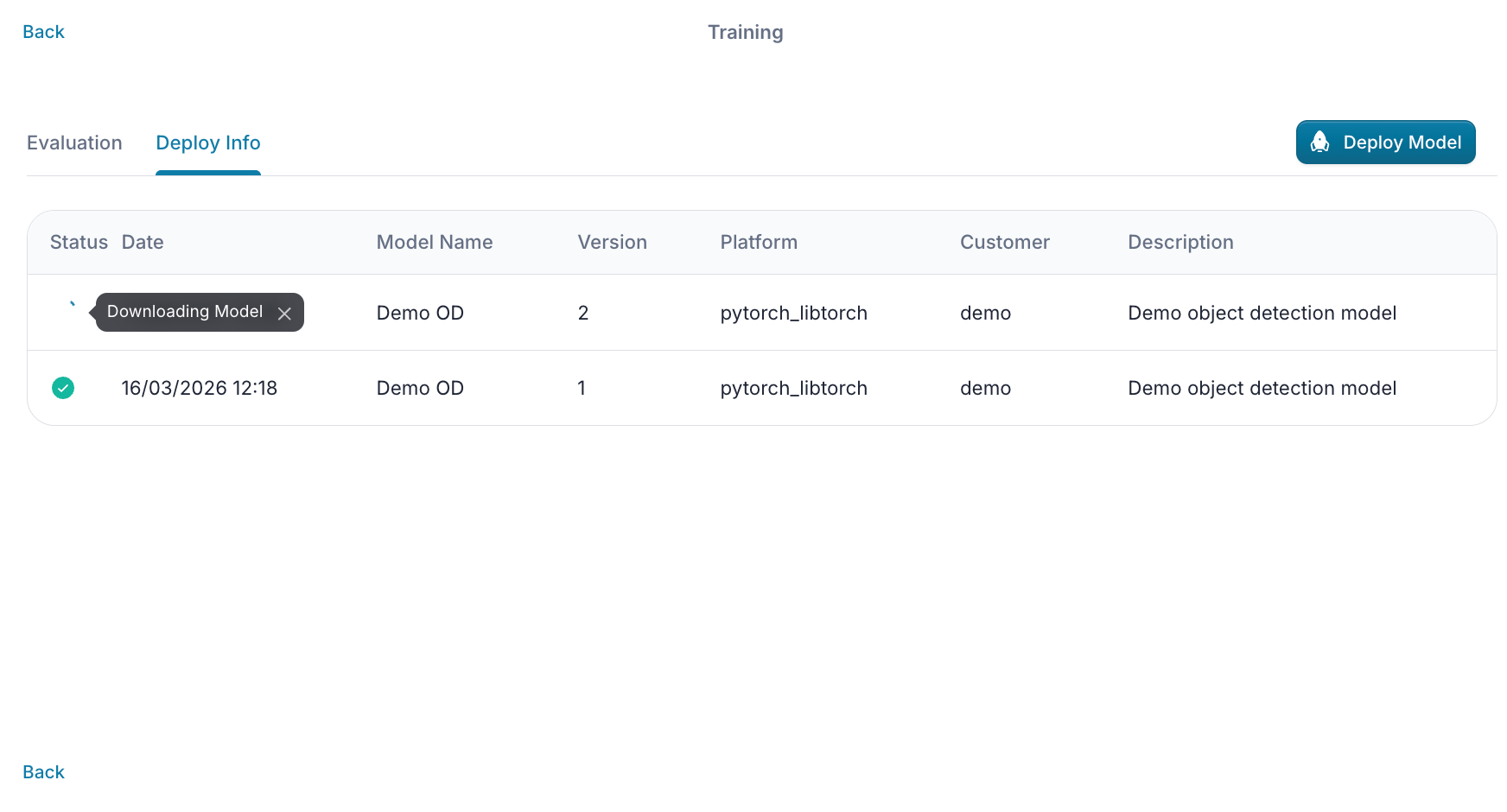
After confirming the deployment, you will be automatically switched to the Deploy Info tab. Here you can track the status of your deployments in a table.
- Status: Shows a spinner during the deployment process and a green checkmark once successful.
- History: The table lists all deployments of the specific experiment, allowing you to deploy the same experiment multiple times under different names or versions.
What's Next?
Local Model Store
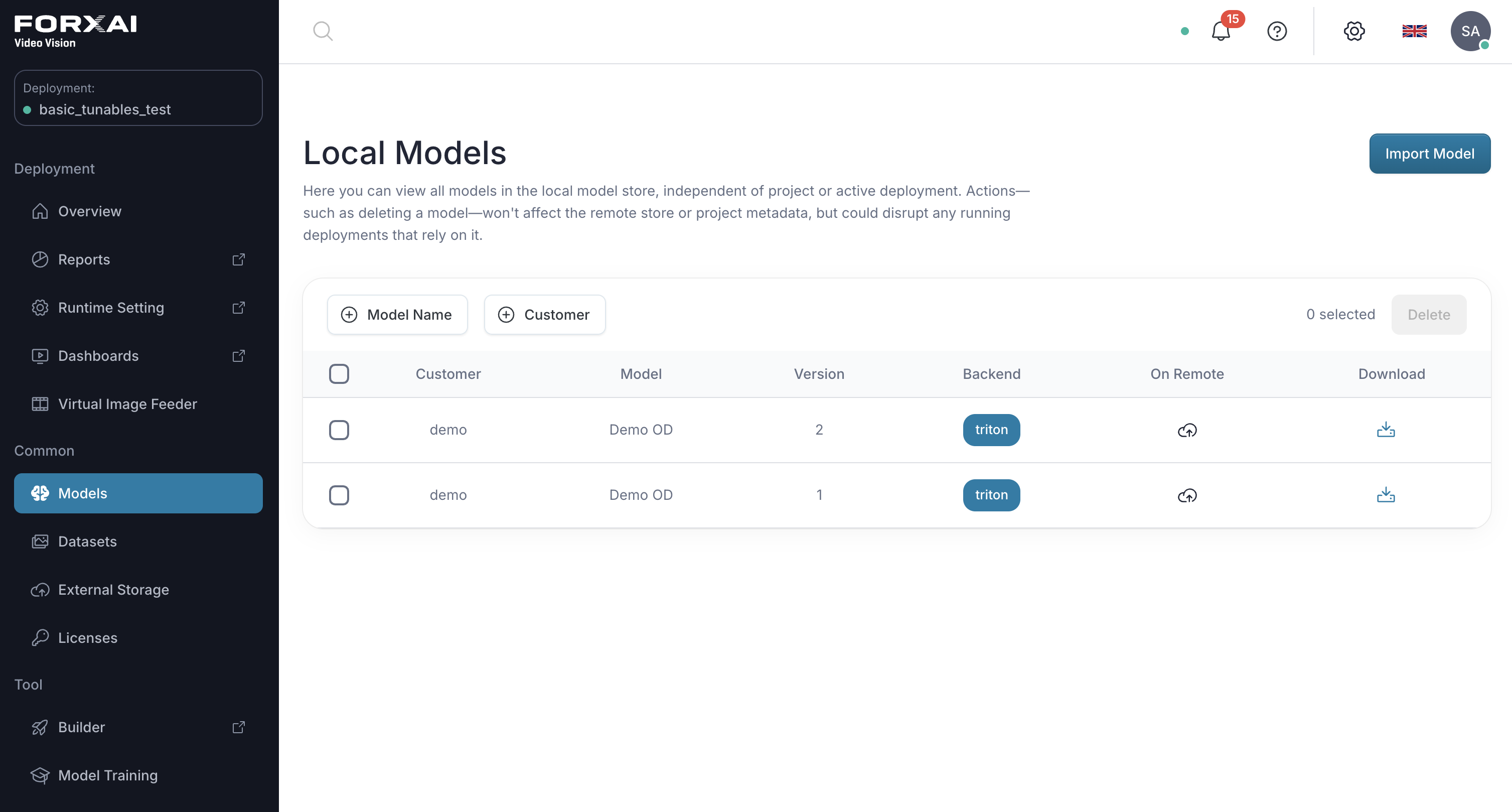
Once a deployment is successful, the model is saved to your Local Model Store. You can view and manage these models by navigating to: https://x.x.x.x/hub/models
TIP
Backup: You can manually download your model to your computer from the Local Models page in the hub for local backup or transfer.
Learn more: Reference: Models
Integrating with Builder
Deployed models are immediately available in the Builder, but must be specifically added to your project using the import button.
Learn more: Reference: Use Models in Project
Troubleshooting Q&A
I deleted my deployed model from the Model Store. Is it gone forever?
Not necessarily! If you still have the original Experiment in your list, just go to the Deploy Info tab and deploy it again. However, if you deleted the Experiment itself, and you didn't download the model to your local machine, the model cannot be recovered.
My deployment status shows an "Error." What happened?
Most deployment errors are caused by one of two things:
- Duplicate Version: You already have a model with that exact Name, Version, and Customer combination.
- Server Storage: The server may have run out of disk space while trying to save the new model file. Double-check your server's available capacity and try again.
Can I deploy a model from a different epoch?
No. To conserve server resources, the system saves only the weights from the Best Epoch, which is automatically selected based on the main metric defined in your experiment configuration.
Can I back up my models to the cloud?
Not automatically. We currently only support Local Storage on your server. We strongly recommend using the Download button on the Local Models page to save a backup to your own computer or external drive.