
Appearance
 Blur Polygons
Blur PolygonsOverview
Applies Gaussian blur to the of each polygon in an image. The entire rectangular region around the polygon is blurred, not just the polygon interior.
Use Blur Polygons when:
- You need to obscure specific areas detected by a model.
- You want to hide personal data for privacy compliance.
💡 Tip
Higher Sigma values result in a stronger blur, effectively obscuring more detail. The blur kernel size scales automatically with the image resolution — larger images produce a proportionally larger blur kernel.
ℹ️ Note
Each polygon is converted to its bounding box before blurring. The entire rectangular region is blurred, not just the area inside the polygon shape.
Inputs
| Name | Type | Description |
|---|---|---|
| input_image | image | The source image to apply the blur on. |
| polygon_list | list[polygon] | The list of polygons defining the regions to be blurred. |
Outputs
| Name | Type | Description |
|---|---|---|
| blurred_image | image | The resulting image with the blurred regions. |
Parameters
| Parameter | Default | Valid values | Tunable |
|---|---|---|---|
| Sigma | 15 | 1 – 1000 | ❌ |
Sigma
Specifies the strength of the Gaussian blur.
Example
Obscure detected PCBs on an assembly line
A model detects two PCB boards on an assembly line and outputs their outlines as polygons. The Blur Polygons node blurs the bounding-box rectangle around each detection to hide proprietary circuit layouts.
Configuration:
- Sigma:
25
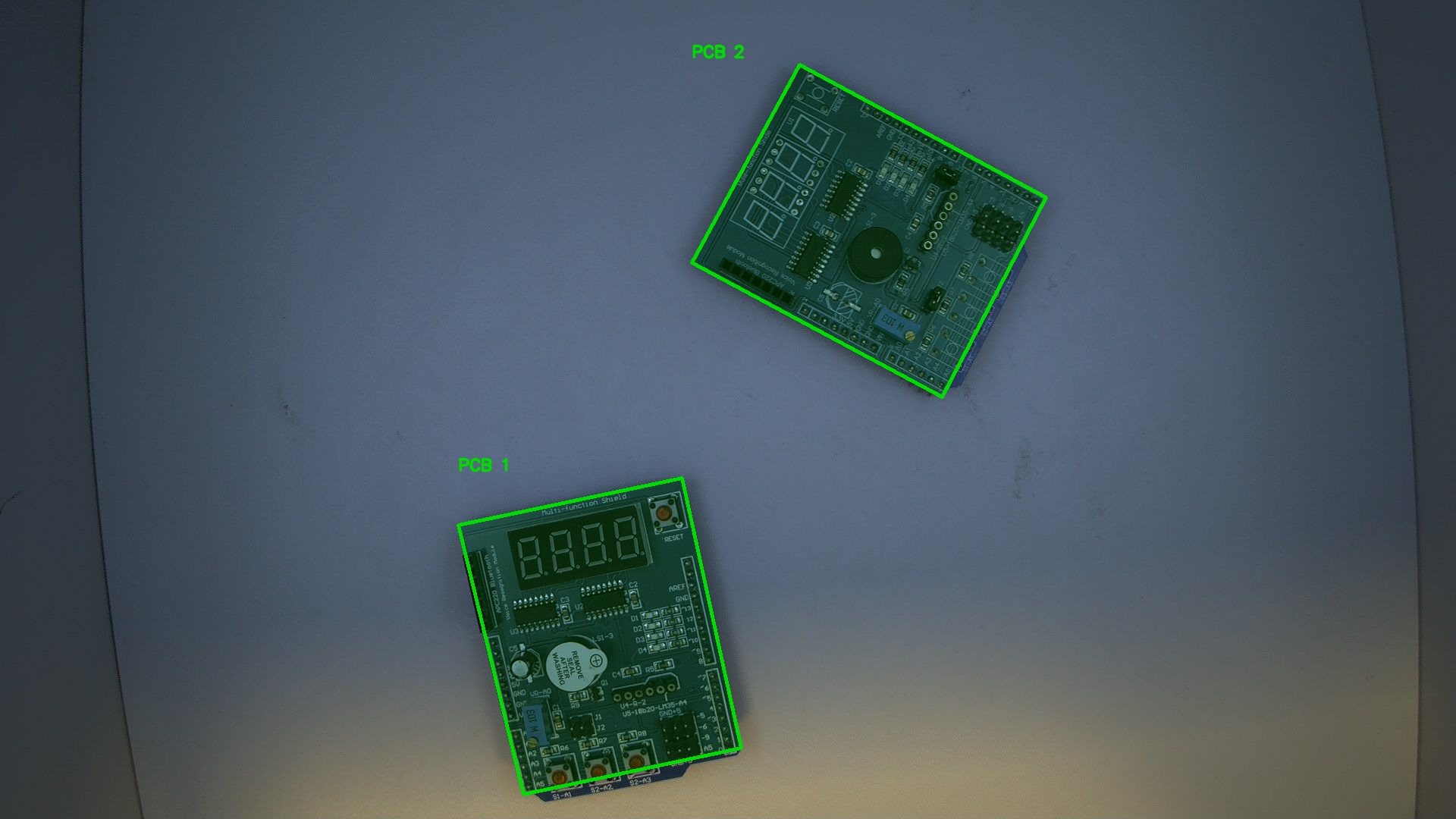
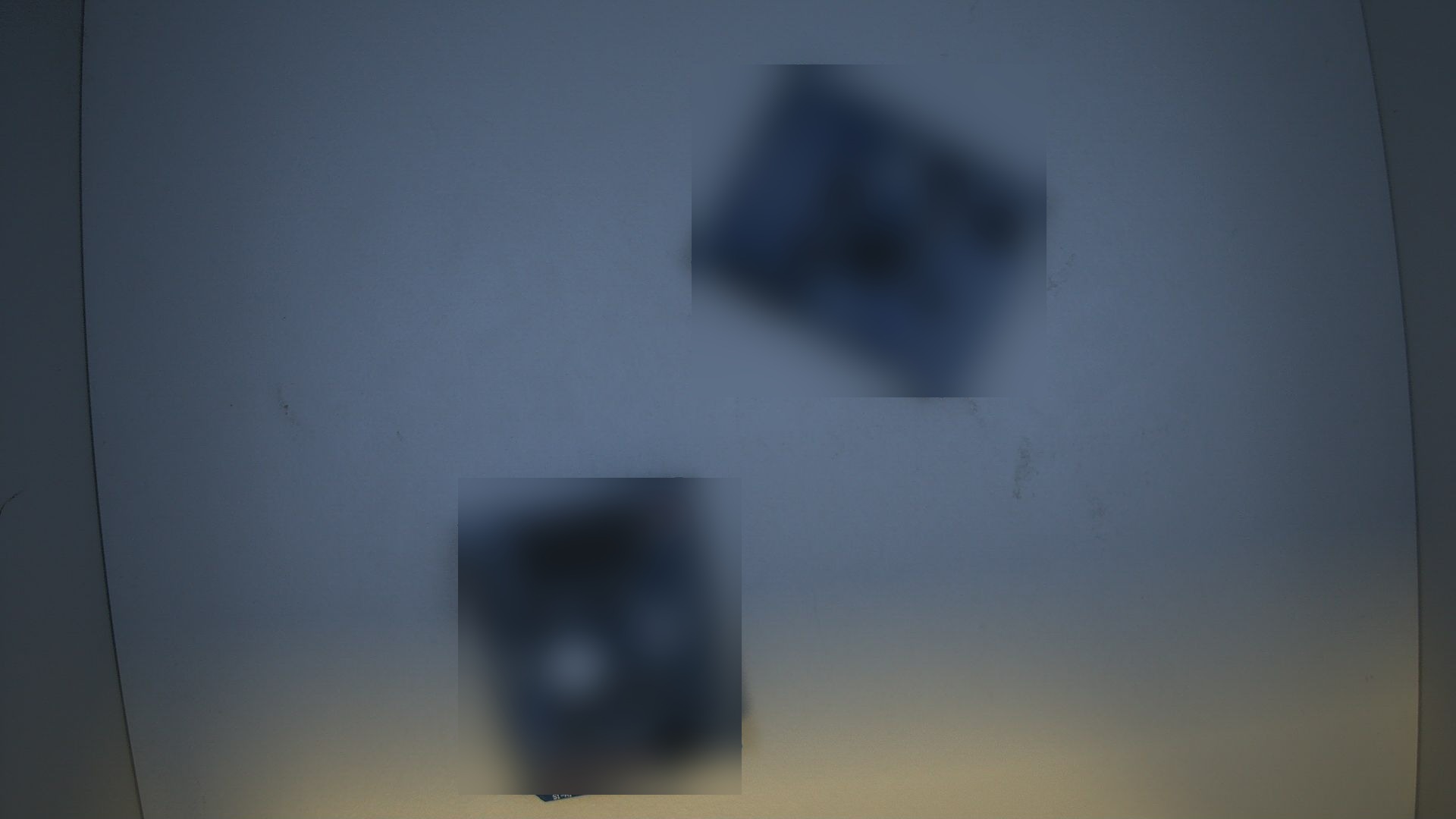
Result: Each polygon's bounding box blurred, hiding the circuit detail while leaving the rest of the image untouched.
Related links
Reference:
- Annotate Polygons — sets visual properties for polygons
- Polygon Crop — crops image regions defined by polygons