
Appearance
Training
Monitor the progress of your model training, view status logs, and manage the experiment lifecycle. This is the final step where all your configurations come to life.
Training States
This section describes each model training state and its meaning.
1. Ready to Start
Initially, the page shows that your configuration is complete and the experiment is ready to be launched.
- Start Training: Click this button to queue your experiment. If the system has available capacity, training will begin immediately; otherwise, it will wait in the queue.
⚠️ Each experiment can run only once. To run it again duplicate the experiment and adjust the settings if needed.
2. Training in Progress
Once started, the interface updates to provide real-time feedback.
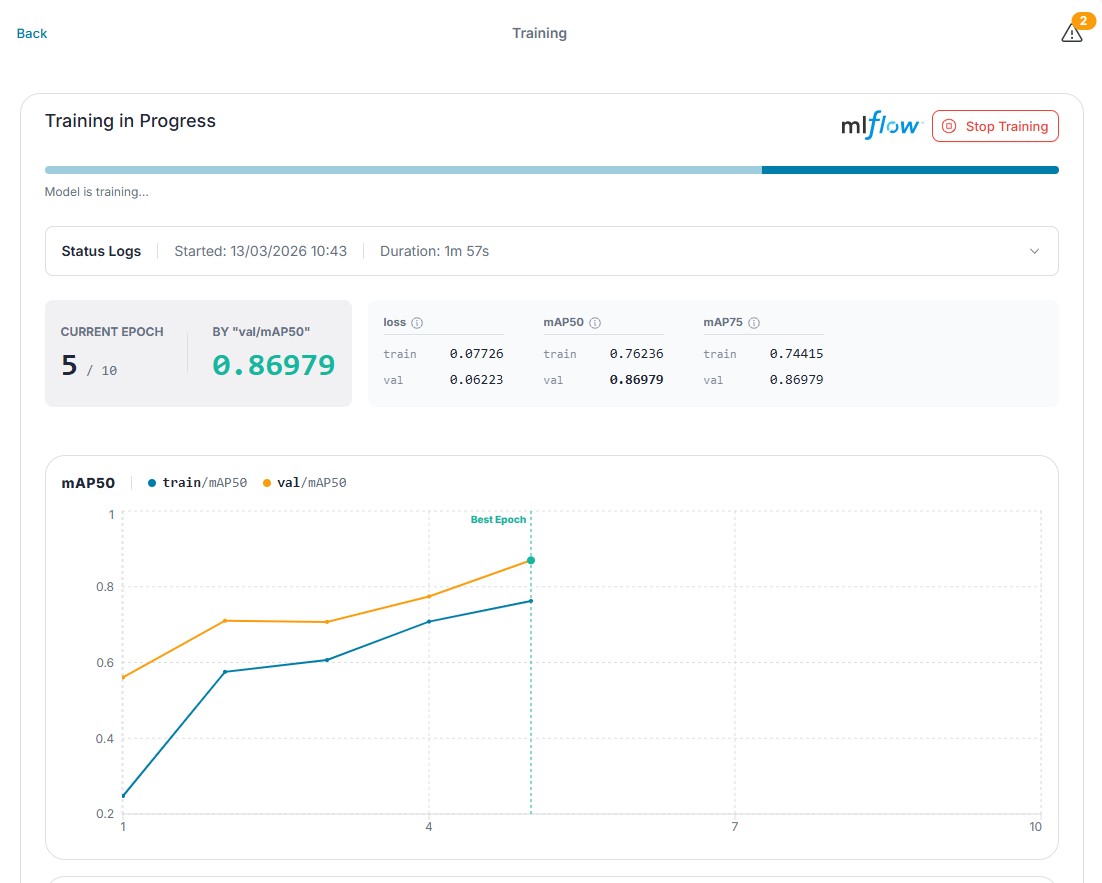
- Progress Bar: Visualizes the completion percentage of the training epochs.
- Status Logs: A collapsible section ("Status Logs") displays system messages, current epoch details, and loss values. Expand this to troubleshoot issues or verify training speed.
- MLflow: A link to the MLflow experiment run is often provided for deep-dive metrics (loss curves, accuracy, artifacts).
- Stop Training: Aborts the active run. Use this if the model begins to diverge, if you have already achieved satisfactory metrics in a previous epoch, or to reclaim resources for other tasks.
Stopping vs. Canceling
The result of interrupting a training run depends on how much progress has been made:
- Before the first epoch completes: The run is Canceled. No model artifacts are generated, and nothing can be deployed.
- After at least one epoch completes: The run is Stopped. The system saves the best-performing model from all completed epochs. This model is saved and ready for deployment.
3. Queueing and Failure
- Queueing: If other trainings are running, your job may enter a "Queued" state. You can monitor its position or cancel it if needed.
- Failure: If the training crashes (e.g., due to OOM errors or invalid configuration), the error message will be displayed prominently. Review the Status Logs for the specific traceback.
- Examples:
- CUDA out of memory - try to reduce
Batch Sizein DataLoader Config parameters
- CUDA out of memory - try to reduce
⚠️ Warning
Restarting the server will terminate any active model training.
4. Training Finished
When the training completes successfully, the status changes to Training Finished.
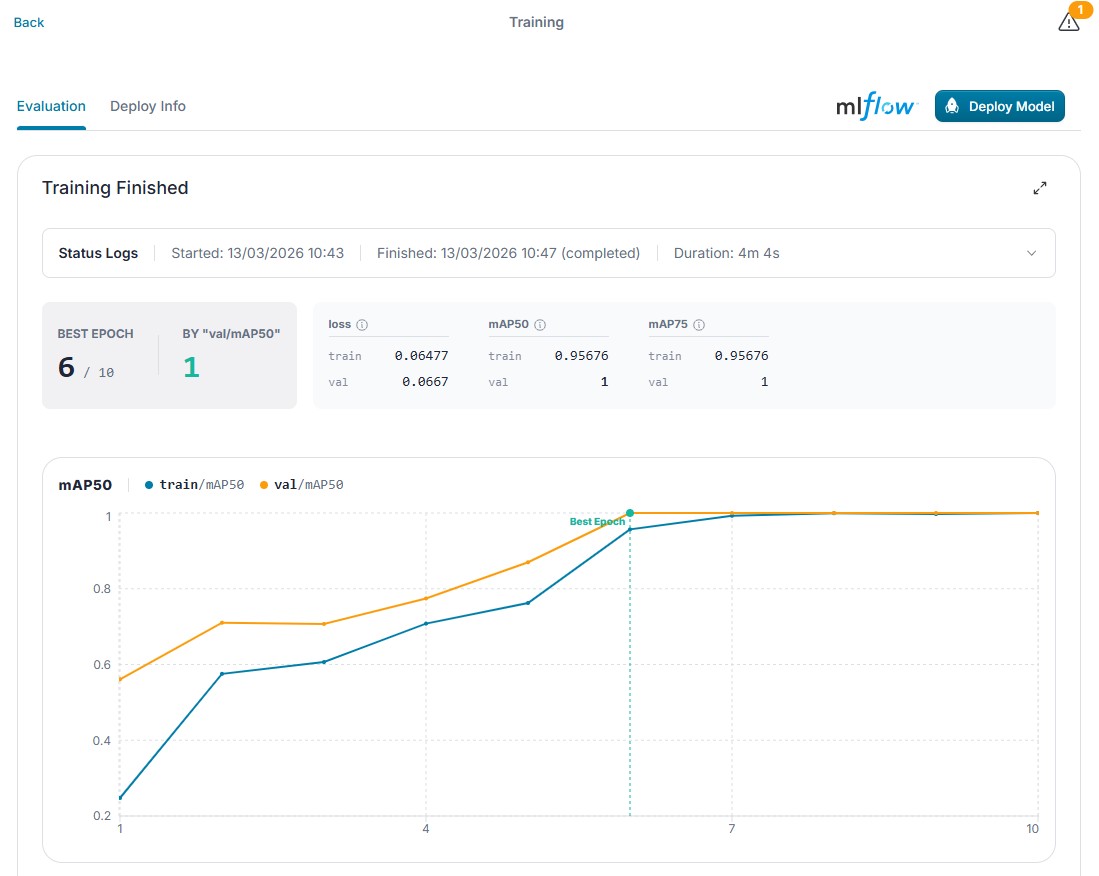
- Summary Stats: View the start time, finish time, and total duration.
- Deploy Model: Crucial Step. You must click this button to register your trained model. Only after clicking "Deploy Model" will the model appear in the Models tab, making it available for use in flows.
Next Steps
Once you have deployed your model, navigate to the Models tab to manage its versions and verify its availability for inference.