
Appearance
Connections
This section describes how to create and utilize external connections to send and receive data to flows from outside world.
Creating External Connections
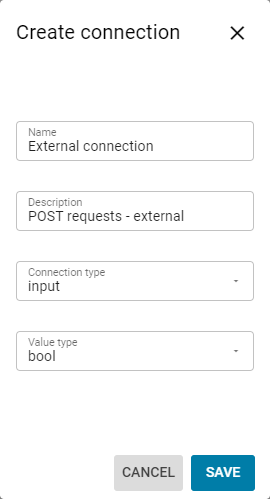
In order to be able to utilize external connections they need to be created and configured. To create a connection, follow these steps:
Click the Create connection button.
Fill in the Name and Description fields.
💡 Tip
Make sure to label the connection clearly, as it will be used later
Select a Connection type.
Input is used for connections that send requests to the Video Vision application. This is done using the HTTP request method POST.
Output is used for connections that receive requests from the Video Vision application. This is done using the HTTP request method GET.
Select a value type. This is determined by unique customer use case requirements.
⚠️ Warning
For input value type, only bool, datetime, string, and image are supported.
For output value type, only bool, image, number, string, and table are supported.
- Click the Save button.
Mapping External Connections
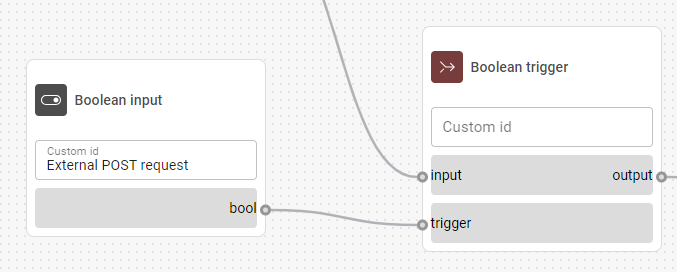
To ensure the External connections communicate with the application properly, you must assign a designated input/output node when you configure the Flow builder:
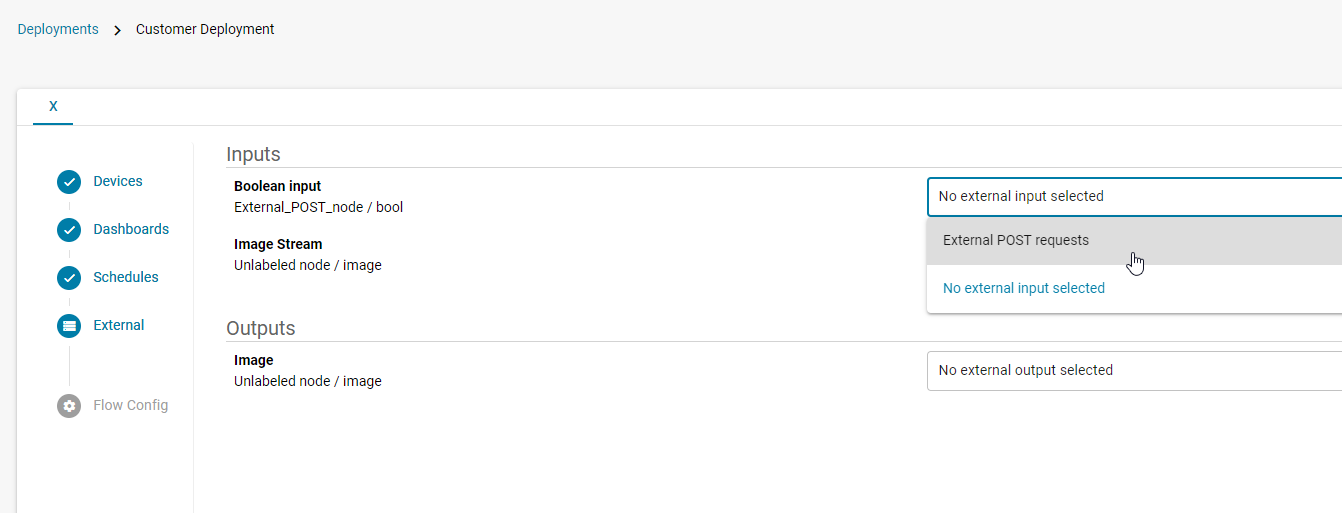
You also need to map appropriate node to configured connection in External section of Deployment Configuration:
Depending on configured flow logic and specifically inputs, using external connections can increase amount of requests being processed at the same time. To avoid disruptions to the service, ensure throttling is properly configured in Flow Settings configuration. Read more about this topic in documentation of Deployment Configuration here.
Using external inputs triggered by events happing sporadically requires setting them as optional. Without this setting processing request in Flow would not start. Review section for configuring deployment I/O options here.
⚠️ Warning
Without proper setting of throttling and optional / immediate settings Project may not work, with no values shown on Dashboard, or sent to output devices and connections.
Using External Connections
1. External inputs
bash
curl -k -X "POST" "https://<HOSTNAME>/hashi/v1/http/external/input/<PROJECT_ID>/<INPUT_CONNECTION_NAME>" \
  -H "X-MQ-Payload-Type: bool" \
  -H "X-Correlation-ID: dce5d400-7513-4afb-bb90-716b2cc86fd7" \
  -H "Content-Type: application/json" \
  -d "{\"value\":true}"
Where url parts are:
<HOSTNAME>- IP or dedicated name of the server you are accessing<PROJECT_ID>- ID of a project as indicated in URL address when navigating to the project<INPUT_CONNECTION_NAME>- name of External connection configured in Builder and mapped to flow nodes
Following Headers needs to be set:
"X-Correlation-ID: dce5d400-7513-4afb-bb90-716b2cc86fd7"- random identifier for requests used for inner system behavior and connecting I/O data together, this value needs to be unique for each request"X-MQ-Payload-Type: bool"- value of a header indicating data type corresponding to field set in connection value type"Content-Type: application/json"for all numeric/textual data"{\"value\":true}"json representation of selected value type
Example input queries
⚠️ Warning
For input processing and reporting to work correctly, the correlation ID must be unique for each query sent.
1. Boolean data input
bash
curl -k -X "POST" "https://<HOSTNAME>/hashi/v1/http/external/input/<PROJECT_ID>/<INPUT_CONNECTION_NAME>" \
  -H "X-MQ-Payload-Type: bool" \
  -H "X-Correlation-ID: dce5d400-7513-4afb-bb90-716b2cc86fd7" \
  -H "Content-Type: application/json" \
  -d "{\"value\":true}"
2. String data input
bash
curl -k -X "POST" 'https://<HOSTNAME>/hashi/v1/http/external/input/74aa54aa-3887-4a97-9604-23665864fd65/string_input' \
  -H 'X-MQ-Payload-Type: string' \
  -H 'X-Correlation-ID: dce5d400-7513-4afb-bb90-716b2cc86fd7' \
  -H 'Content-Type: application/json' \
  -d '{"value":"blue"}'
3. Image input
bash
curl -k -X "POST" 'https://<HOSTNAME>/hashi/v1/http/external/input/7fc538a8-4875-4f52-bc22-af7d74f02747/image_input' \
  -H 'X-MQ-Payload-Type: image' \
  -H 'X-Correlation-ID: dce5d400-7513-4afb-bb90-716b2cc86999' \
  -H 'Content-Type: image/jpeg' \
  --data-binary '@<local_path>/data/kitten_small.jpg'
2. External outputs
Following command can be used to retrieve next value of flow output. To continuously get data stream from flow output, it has to be programmatically called from a loop and processed.
bash
curl -k -X "GET" "https://<HOSTNAME>/hashi/v1/http/external/output/<PROJECT_ID>/<OUTPUT_CONNECTION_NAME>"For outputs instead of POST, GET method is used and URL path includes /<OUTPUT_CONNECTION_NAME>/ part.
3. I/O combination
For specific use-cases, such as robot / cobot integration both input and output have to be connected to the FVV platform from external sources. Following is an example of using external connections to obtain result of the detection and at the same time trigger it.
First a request is sent to obtain next flow output:
bash
curl -k -X "GET" "https://<HOSTNAME>/hashi/v1/http/external/output/09090e43-4c2c-4974-aa4d-dcdc038746c3/result?correlation_id=dce5d400-7513-4afb-bb90-716b2cc86fd7"Then immediately POST request triggers the flow:
bash
curl -k -X "POST" "https://<HOSTNAME>/hashi/v1/http/external/input/09090e43-4c2c-4974-aa4d-dcdc038746c3/trigger" \
  -H "X-MQ-Payload-Type: bool" \
  -H "X-Correlation-ID: dce5d400-7513-4afb-bb90-716b2cc86fd7" \
  -H "Content-Type: application/json" \
  -d '{"value":true}'
Then as configured in the project, expected response would be: {"value": false|true}, indicating defect or no defects found. For I/O combination correlation IDs in both requests must be the same.