
Appearance
Model Training Workspaces and Problems
Note: This feature is only available to users with superadmin or platformadmin roles.
A workspace allows you to define the scope for your problems and manage all related model trainings. Create a workspace to organize your data, experiments, and results in one place.
To access the Training Workspaces page, click on Model Training in the main menu. The page is located at hub/model-training.
Workspace List Overview
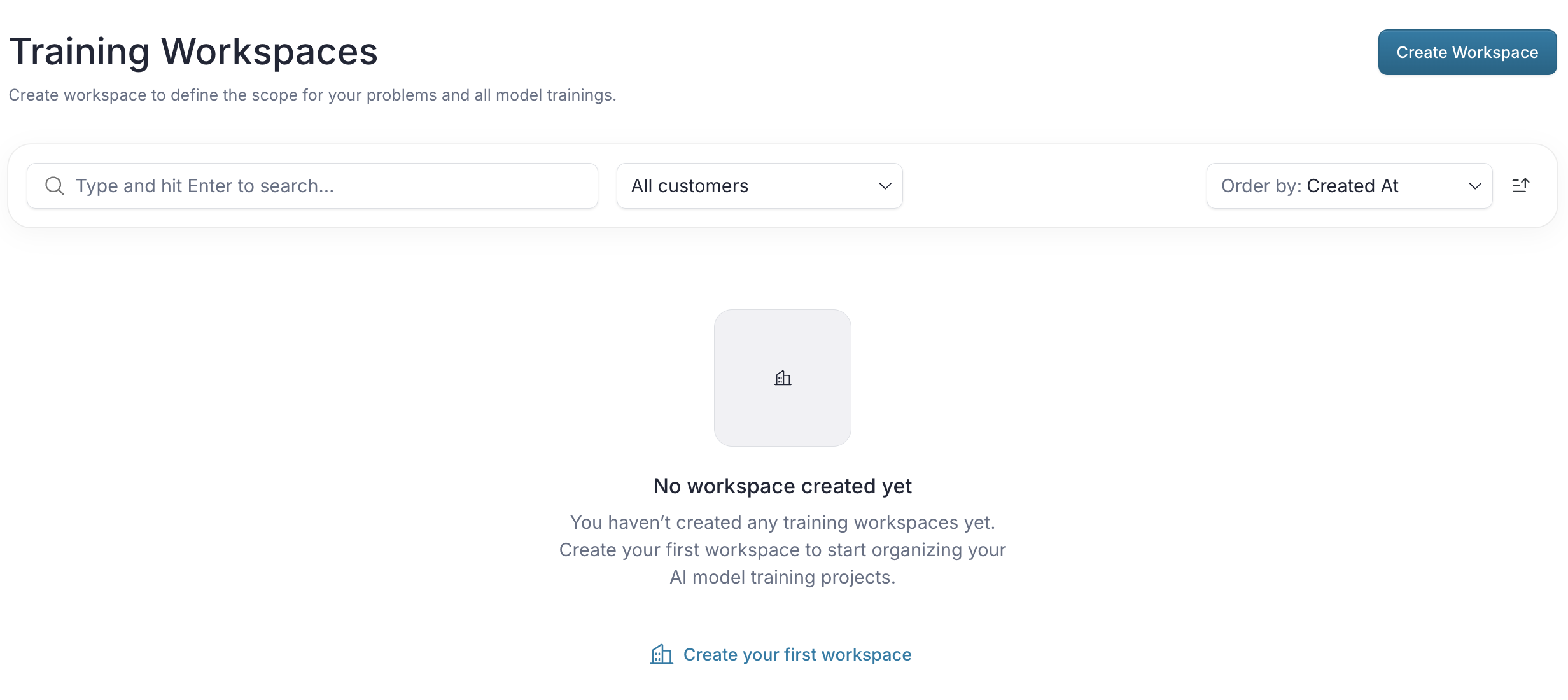
The workspace list page provides an overview of all your training workspaces. To begin a new training project, you must first create a workspace by clicking the Create Workspace button.
Creating a Workspace
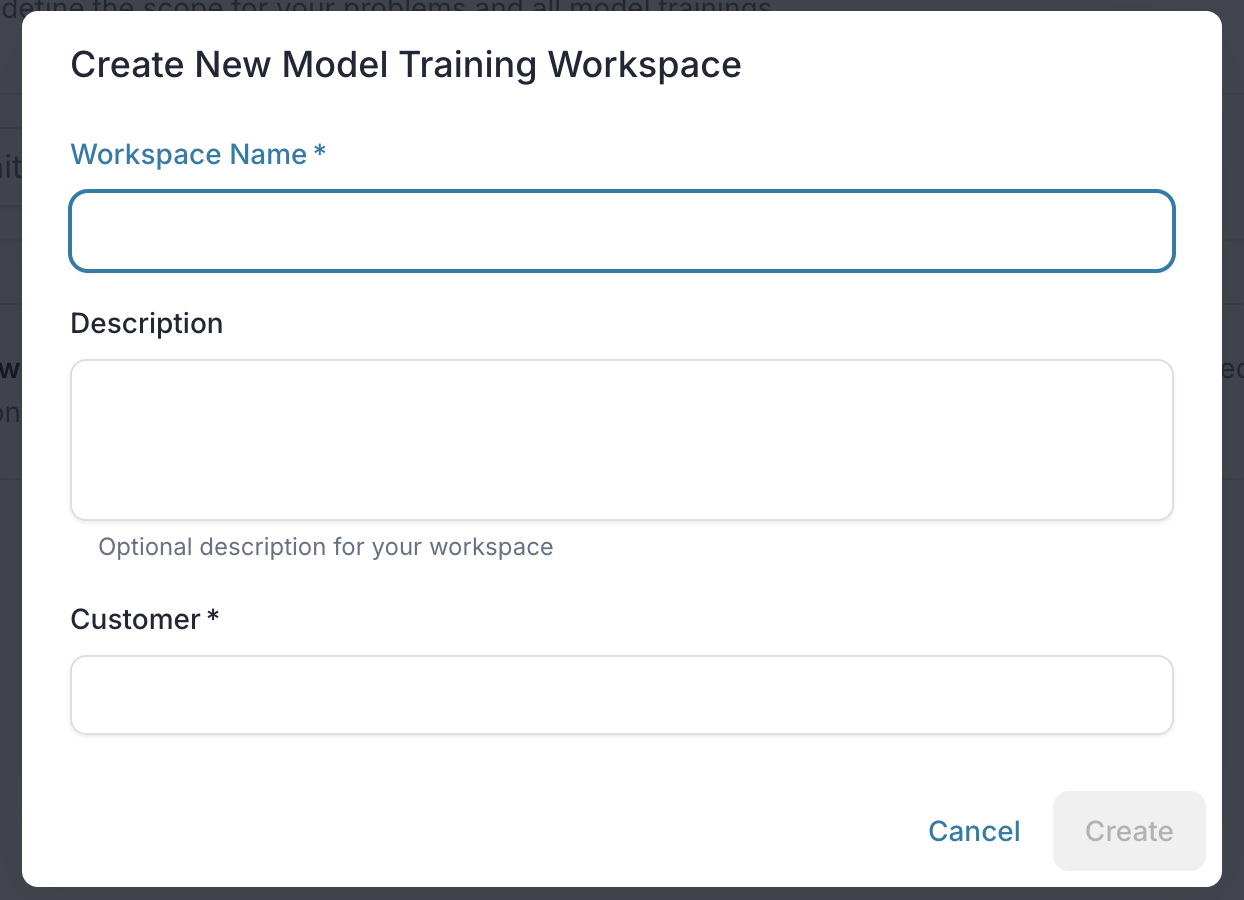
When you create a new workspace, you'll provide basic information to help organize and identify your training projects. The form includes fields for the workspace name, an optional description, and customer association to keep your projects well-organized.
Workspace Row Actions
Each workspace row offers several actions to help you manage your workspaces efficiently:

- Open Workspace: Click on workspace name to open and view the details of that specific workspace.
- More Actions Menu: At the end of each row, click the horizontal dots (…) to access additional options:
- Edit Workspace: Update the workspace's name, description, or customer.
- Delete Workspace: Delete the workspace from your list. (You will be asked to confirm this action when workspace is not empty.)
Search, Filter, and Sorting
- Search: Quickly find a workspace by typing keywords into the search bar and confirm it with enter.
- Filter by Customer: Narrow down the list to show only workspaces associated with a specific customer.
- Ordering: You can order the list based on different aspects, such as workspace name, creation date and more.
- Sorting: For each ordering option, you can sort the list in ascending or descending order to suit your preference.
Workspace Detail
Note: This feature is only available to users with superadmin or platformadmin roles.
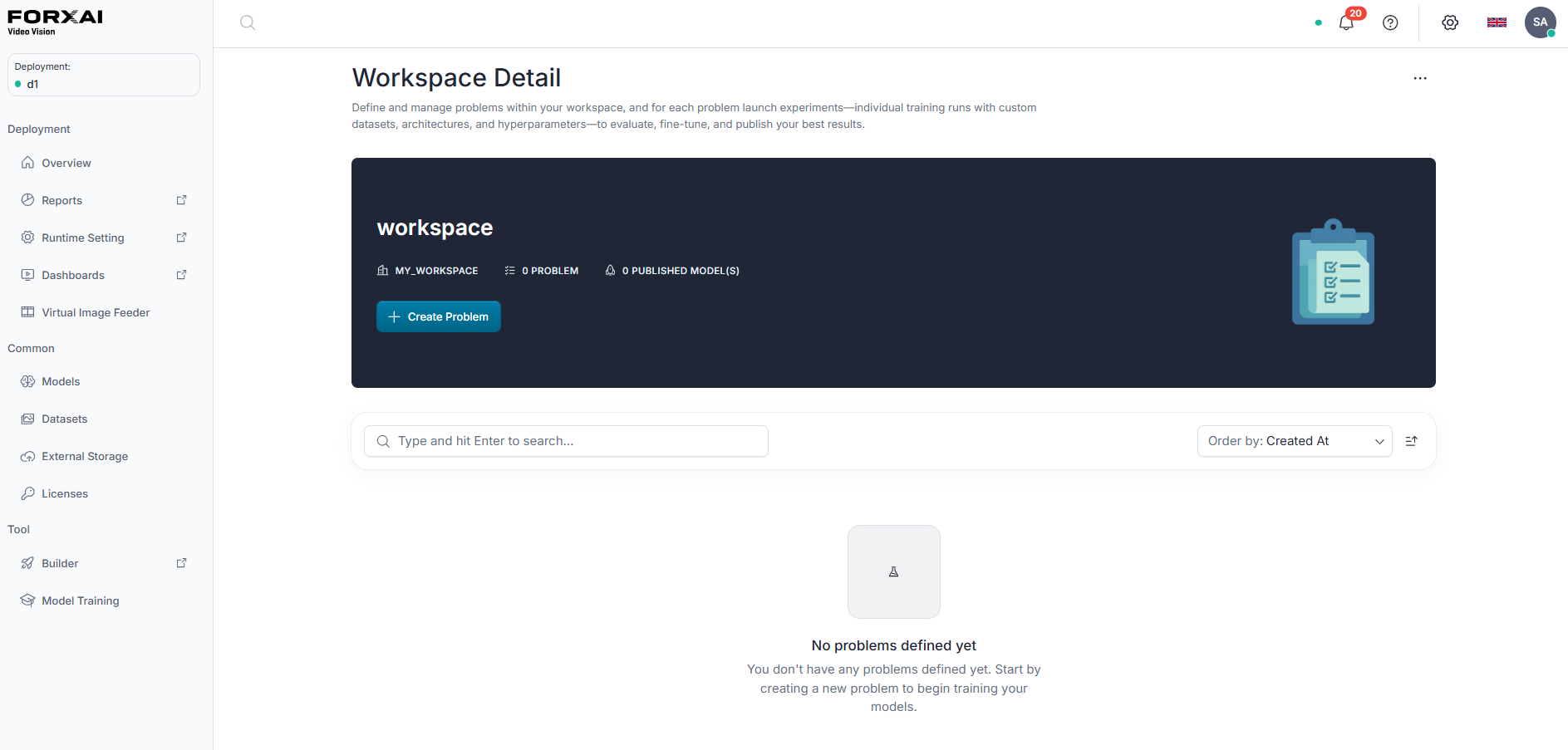
A workspace detail page lets you manage all problems and related model trainings within a single workspace. Here, you can add new problems, edit them and review existing ones.
Solving a new Problem
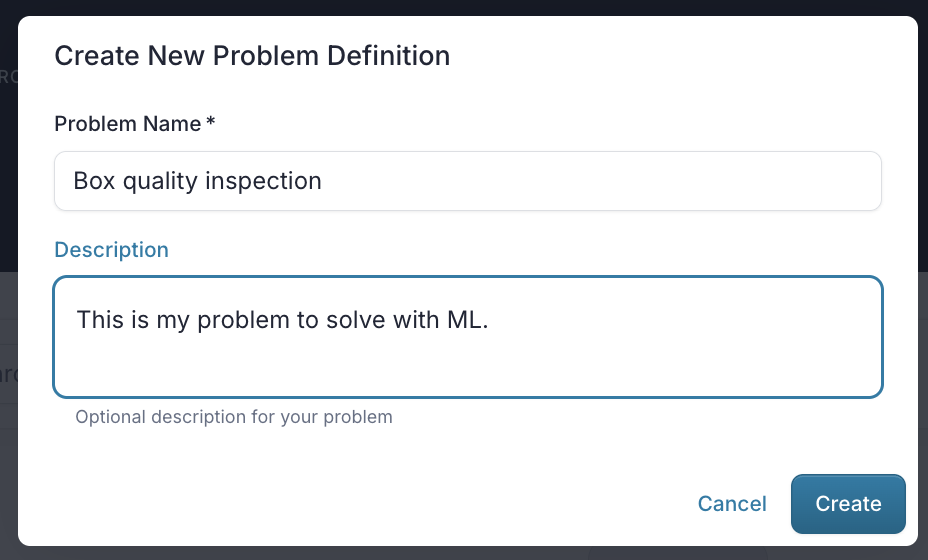
To add a new problem to your workspace, click the Solve New Problem button. You'll provide basic information including a unique problem name and optional description to help organize and identify your training problems within the workspace.
Problems List Overview
The problems list displays all problems associated with the workspace. Each problem row shows key information including the problem name, description, experiment count, published model count, and last update timestamp to help you quickly assess and manage your training projects.

Problem Row Actions
Each problem row offers several actions:
- Edit Problem: Update the problem's name or description.
- Remove Problem: Delete the problem from the workspace (confirmation required).
Search, Order, and Sorting
- Search: Quickly find a problem by typing keywords into the search bar.
- Order By: Choose to order the list by name, number of experiments, number of published models, or last updated date.
- Sorting: For each ordering option, you can sort the list in ascending or descending order.