
Appearance
 Apply Mask
Apply MaskOverview
The Apply Mask node isolates a specific area of an image by overlaying a mask. The mask is automatically binarized — any non-zero pixel becomes 1 and zero pixels stay 0. Masked areas (where the mask is 0) become black; unmasked areas pass through unchanged.
Use Apply Mask when:
- Isolating a detected object or region for downstream processing.
- Removing background elements outside a region of interest.
- Applying a thresholded heatmap from Heatmap Threshold to keep only the objects of interest in the original image.
💡 Tip
The mask is binarized internally — any pixel value greater than 0 is treated as "keep". You do not need to pre-process the mask into strict 0/1 values. Ensure the mask dimensions match the source image to avoid errors.
Inputs
| Name | Type | Description |
|---|---|---|
| image | image | The source image to be masked. |
| mask | image | The mask area, where non-zero pixels represent area that will be kept. |
Outputs
| Name | Type | Description |
|---|---|---|
| masked_image | image | The resulting image with the mask applied. |
Parameters
This node does not have any configuration parameters.
Example
Isolating PCBs from the background
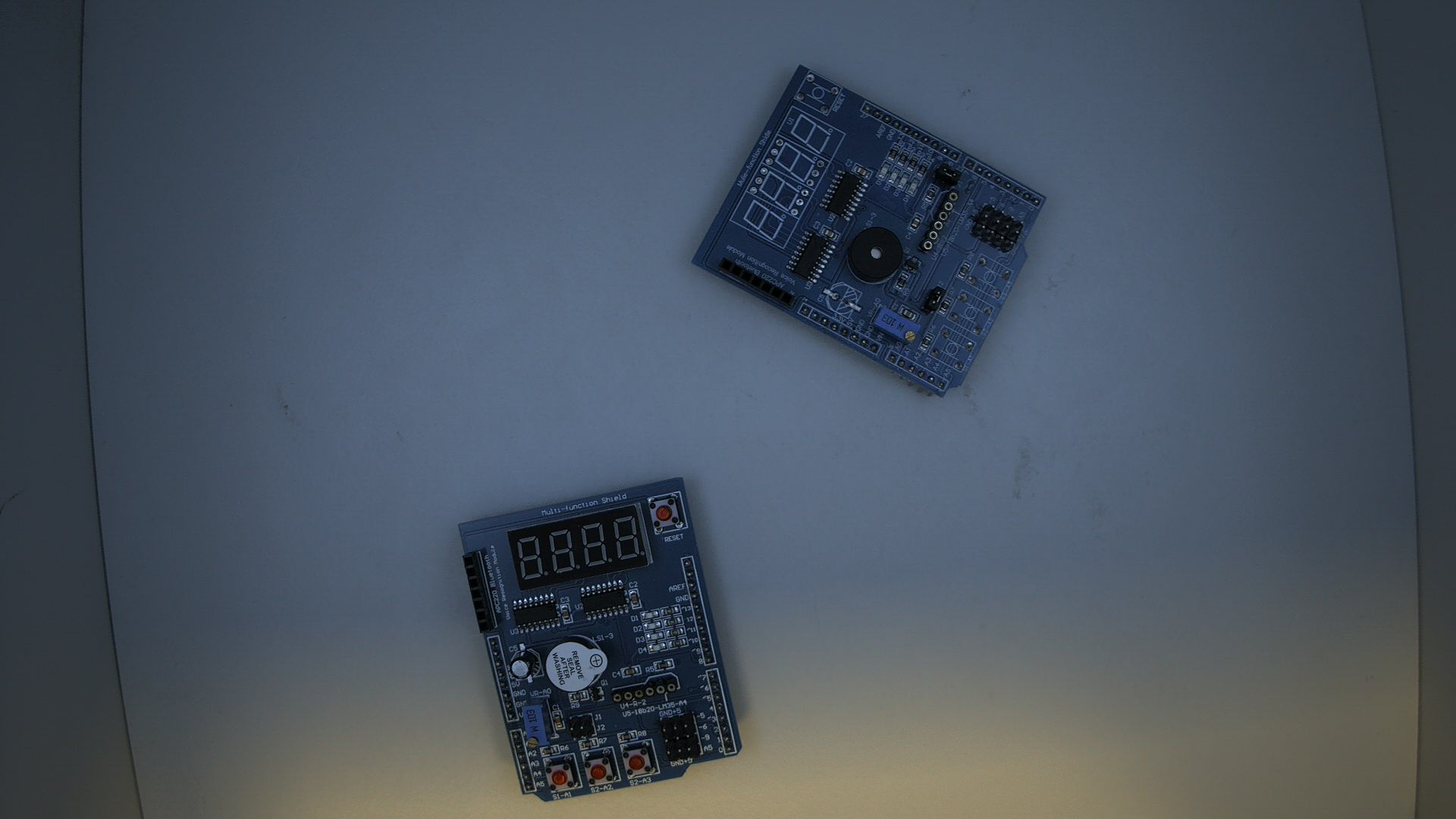
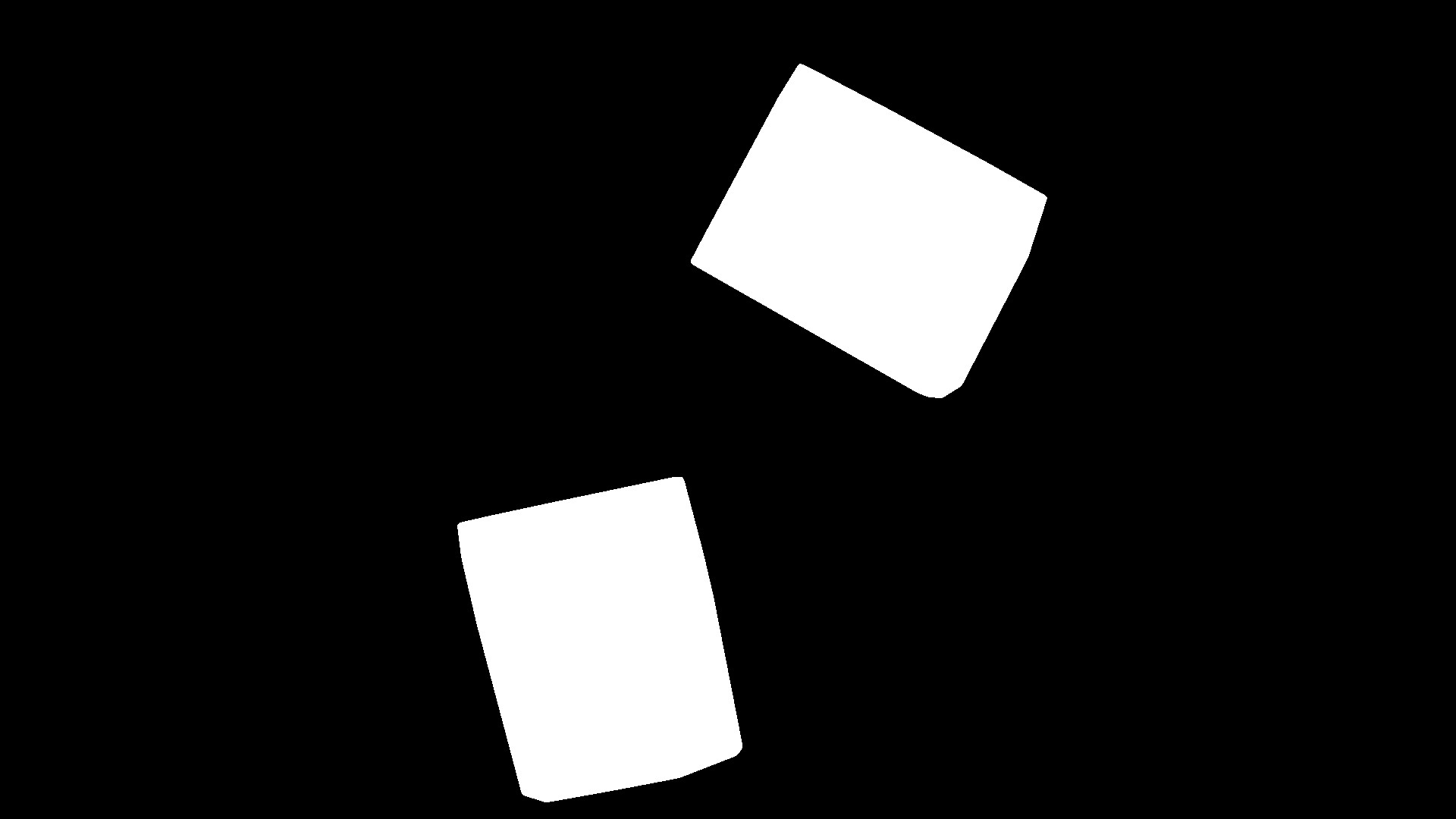
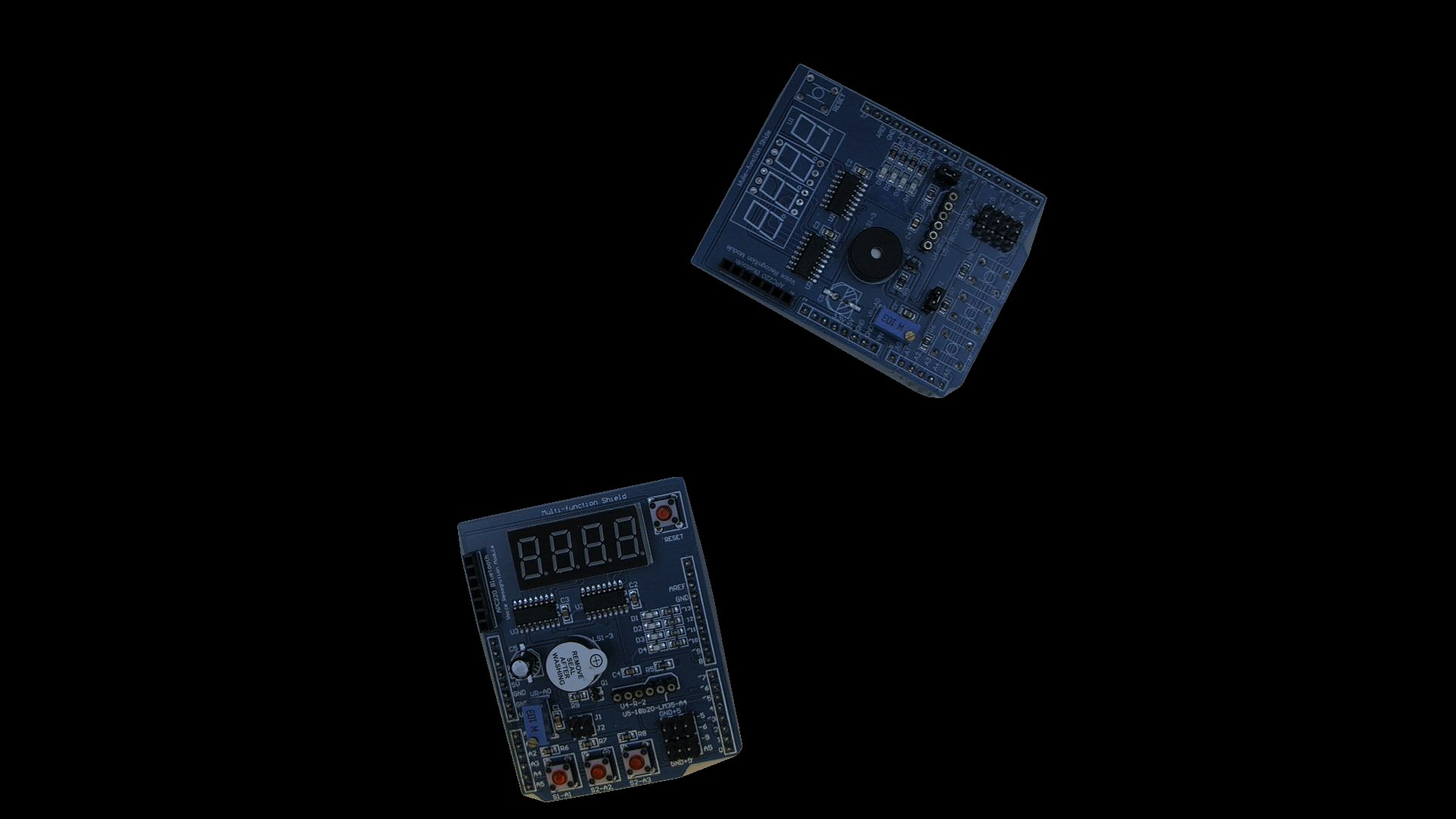
A camera captures a scene containing two PCB boards on a table. A binary mask identifies the board regions, and Apply Mask removes everything outside those regions.
Configuration:
This node has no configurable parameters. Connect the source image to image and the binary mask to mask.
Result: The output image contains only the PCB pixels from the original image. All other areas are black (0).
Related links
Reference:
- Heatmap Threshold — thresholds a heatmap, zeroing out low-intensity pixels; the result can feed this node as a mask
- Overlay Heatmap — overlays a heatmap onto an original image for visualization
- Crop Image — basic rectangular image cropping
- Polygon Crop — cropping an image based on a polygon shape
- Dynamic ROI — filtering objects based on a moving region of interest