
Appearance
 Dynamic AI Model
Dynamic AI ModelOverview
The Dynamic AI Model node enables runtime switching between multiple machine learning models within a single flow. Unlike the standard AI Model node, which uses a single preloaded model, this node can unload the current model and load a new one on demand — useful when your workflow must handle varied tasks within the same deployment or when GPU memory cannot support multiple models simultaneously.
Use Dynamic AI Model when:
- You need to switch between different inspection tasks based on external triggers.
- You want to process multiple object types that require specialized models without running them all simultaneously.
- Your hardware resources (GPU memory) are limited and cannot support multiple concurrent model instances.
💡 Tip
At deployment startup, no model is loaded by default. The node must receive a valid model name on its model_name input before it begins processing images. Switching between models takes a brief moment during which no images are processed.
Inputs
| Name | Type | Description |
|---|---|---|
| image | image | The source image to be processed by the active model. |
| model_name | string | The identifier of the model to activate. Format: CustomerName/ModelName:Version (must match a pre-selected model). |

Outputs
The available outputs depend on the Model output format parameter.
Mapped format — all results bundled into a single output:
| Name | Type | Description |
|---|---|---|
| prediction | prediction | A dictionary of prediction results from the active model, organized by prediction class. |
Unpacked format — individual attributes as separate outputs, prefixed by the prediction class name (e.g. Defect_polygons, Defect_probability):
| Name | Type | Description |
|---|---|---|
| {Class}_heatmap | heatmap | Spatial distribution of detected features. |
| {Class}_points | list[point] | Detected coordinates from the active model. |
| {Class}_polygons | list[polygon] | Geometric outlines of objects detected by the active model. |
| {Class}_class | string | The label of the detected prediction class. |
| {Class}_probability | number | Confidence score of the classification (0–1). |
Always present:
| Name | Type | Description |
|---|---|---|
| current_model | string | The name of the currently active model, or an error message if none is loaded. |
💡 Tip
The specific unpacked outputs (heatmap, points, polygons, class, probability) depend on what the selected model produces.
Parameters
| Parameter | Default | Valid values | Tunable |
|---|---|---|---|
| Select AI models | [] | Multiselect | ❌ |
| Model output format | unpacked | unpacked, mapping | ❌ |
Select AI models
A list of pre-selected models that the node is authorized to load at runtime. Only models chosen here can be activated via the model_name input.
⚠️ Important constraints
- All selected models must have the same inputs and outputs (output classes, types and constraints).
- Models must be downloaded and marked as valid in the Models section to appear as options.
- Any selected model must not be used in any other AI Model or Dynamic AI Model node.
Model output format
Determines how prediction data is exposed to downstream nodes.
- All value types (unpacked) — individual attributes (polygons, probability, class, etc.) appear as separate output pins.
- Only model classes (mapping) — all results are bundled into a single
predictionoutput, organized by class. Use Extract Attributes to access individual values.
Example
Multi-product inspection line
A packing line processes both apples and oranges. An external sensor identifies the product type and sends the corresponding model name to the node.
Configuration:
- Select AI models:
Apple_Detector:1,Orange_Detector:1 - Model output format:
unpacked
Result: When the node receives Apple_Detector:1, it unloads any previous model, loads the apple inspection model, and outputs polygons outlining bruises on the fruit.
Displaying the active model on the dashboard
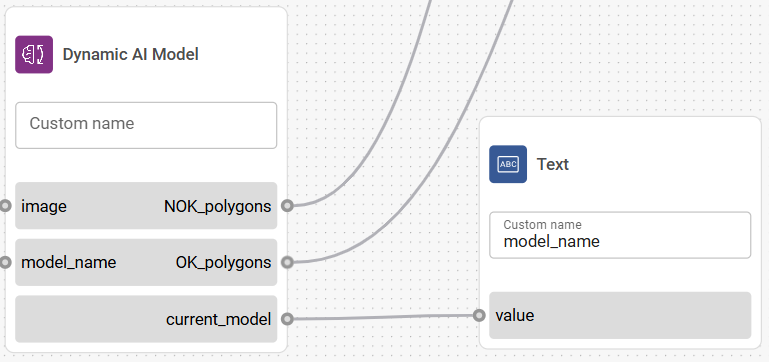
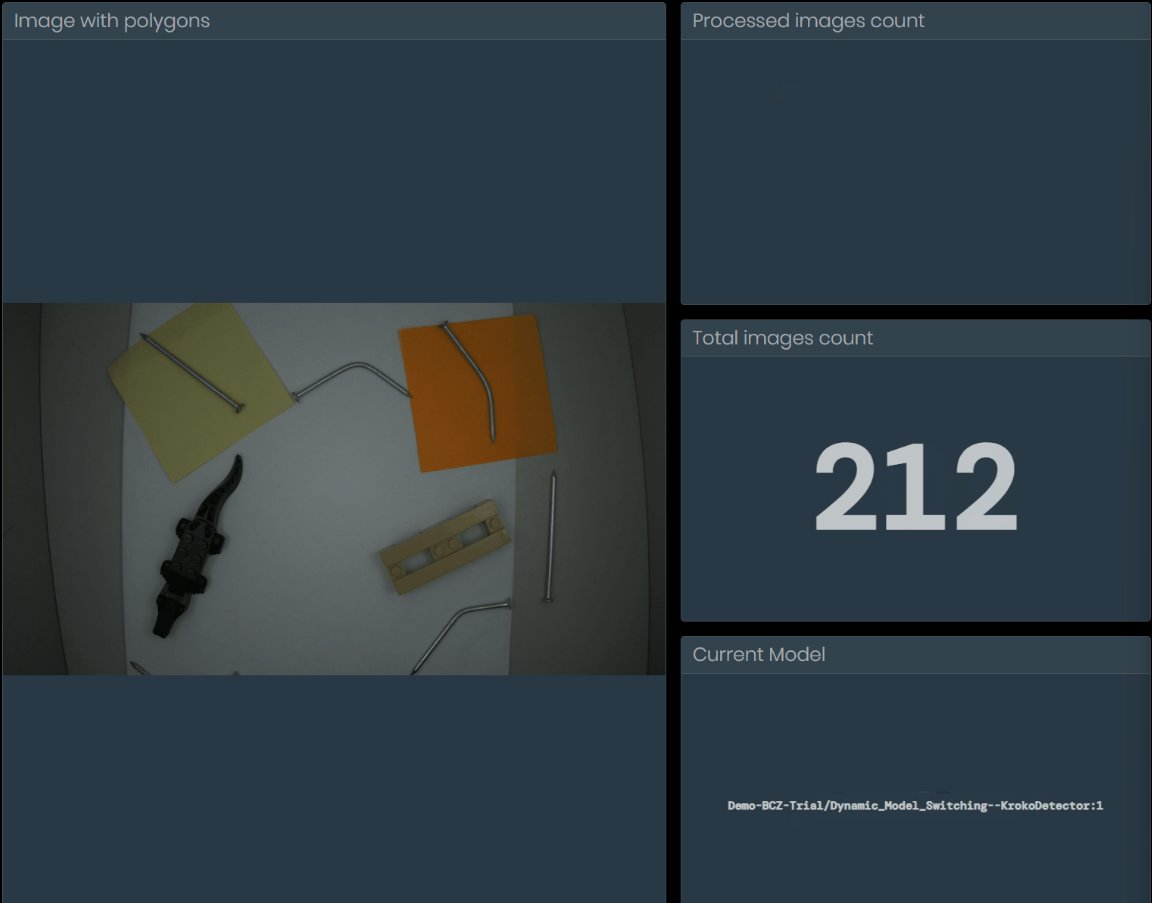
The current_model output shows the name of the currently active model. Connect it to a Text output node with a Value widget to display it on the dashboard.
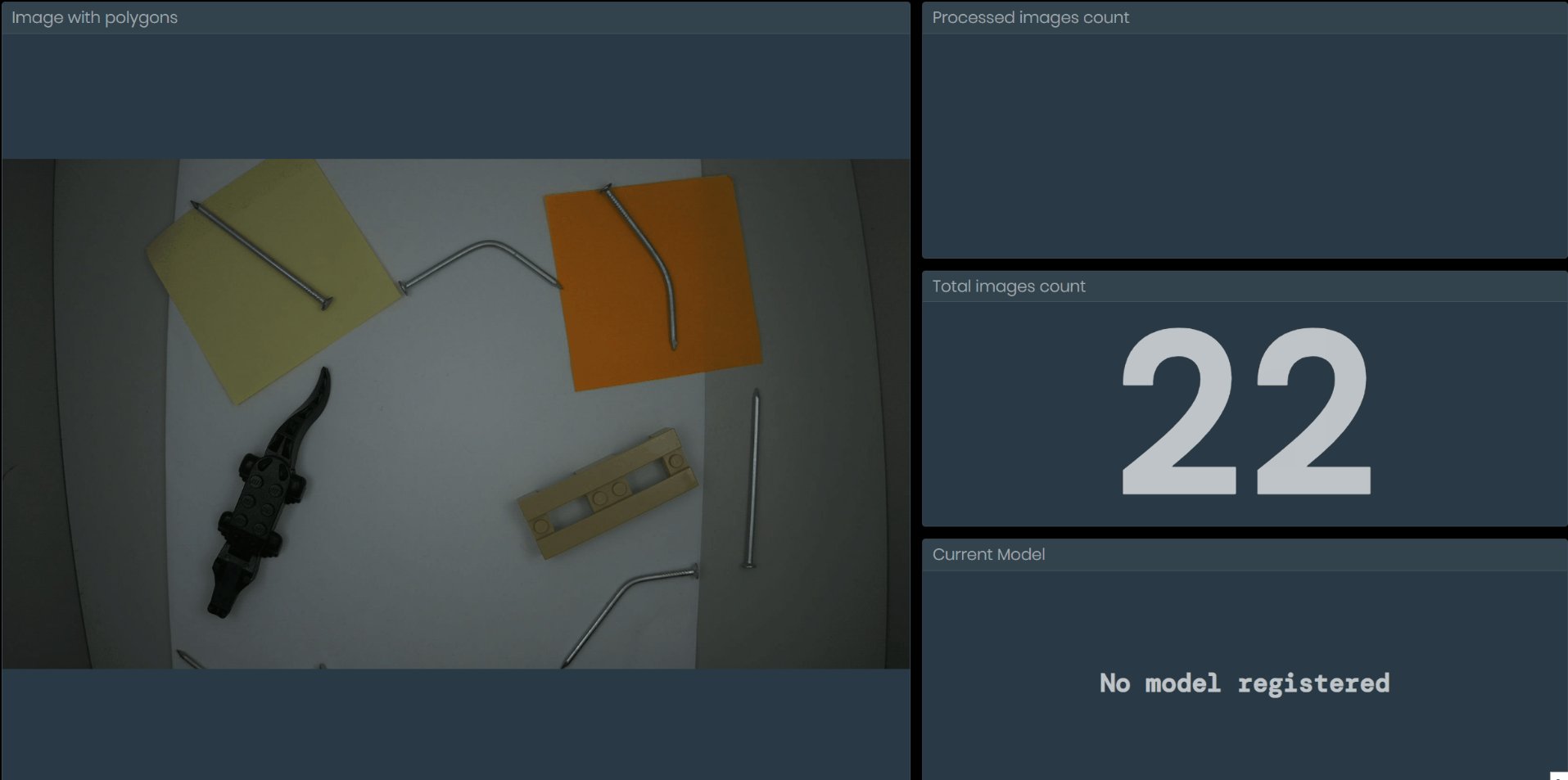
"No model registered" appears when:
- The node is in its default state (e.g. after deployment startup or configuration reset) and has not yet received a model name.
- The received model_name doesn't match any of the selected models (e.g. contains a typo). The previously active model is unregistered and the node waits for the next valid input.
💡 Tip
If "No model registered" appears unexpectedly, verify that the strings sent into the model_name input exactly match the names of the selected models. The message may also appear briefly during system initialization — this is normal.
Switching models via REST API
You can send the model name via an external REST API request.
Prerequisites:
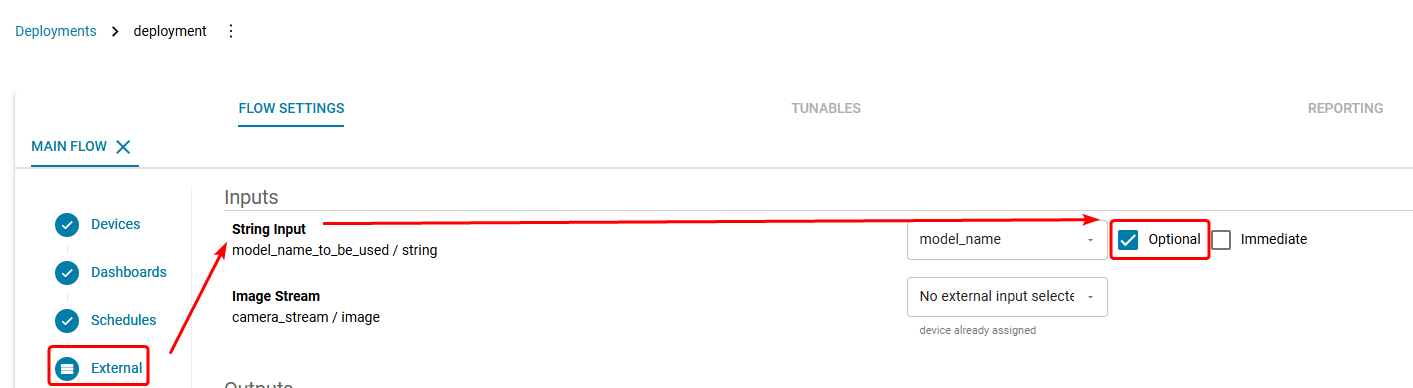
- An external Connection to the server.
- A String Input node mapped to the connection in Deployments.
- The String Input node must be set as Optional in Deployments.
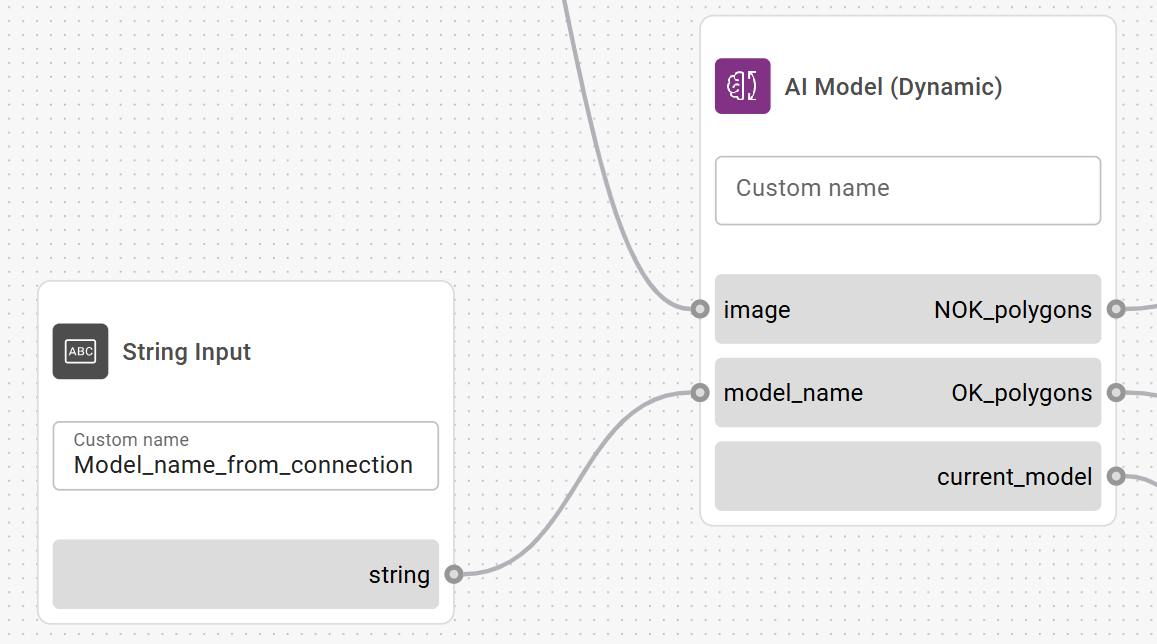
Example request:
bash
curl -k -X POST \
  'https://SERVER_URL/hashi/v1/http/external/input/PROJECT_ID/CONNECTION_NAME' \
  -H 'X-MQ-Payload-Type: string' \
  -H 'Content-Type: application/json' \
  -H 'X-Correlation-ID: dce5d400-7513-4afb-bb90-716b2cc86fd7' \
  -d '{"value": "CustomerName/ModelName:Version"}'
Related links
Reference:
- AI Model — run inference on a single, fixed model
- Extract Attributes — extract specific attributes from model predictions
- Polygon Threshold — filter detected objects by size or confidence
- Models — manage model downloads and availability
- Connections — set up external connections for API-driven workflows
- Deployments — configure deployment input mappings