
Appearance
Virtual image feeder
This page demonstrates usage of virtual image feeder. The feature provides a way to receive the video feed from pre-recorded images, uploaded to dataset. The feature provides options to control the playback via actions start/stop/resume playback. The user is able to set playback speed for image playback.
Overview
- A dataset can be used to provide input to the system.
- Multiple dataset can be used at the same time to provide unsynchronized input to the system, meaning frames (images) in datasets don't played back by each of virtual camera at the exact same time. One camera plays back an image slightly before or after the other.
- The user can customize the playback speed - configure FPS.
- Images are streamed from first one in alphabetical order.
⚠️ Having multiple image streams (even using virtual cameras) in the project have limitations.
Prerequisites
To be able to run Virtual Camera feeder, dataset with uploaded images must be prepared and running deployment must contain Virtual camera as an input.
How to Create dataset with data is described on Datasets page. Creation and configuration of Virtual camera is described in Devices part of documentation.
Configure and run Virtual Image Feeder
When both prerequisites are fulfilled virtual image feeder can be configured and started. To configure and start the feeder follow:
Navigate to the Virtual image feeder section from the Hub application menu. Keep in mind that this part is available only when deployment is running.
See the list of available virtual image feeders, associate a dataset with each one.
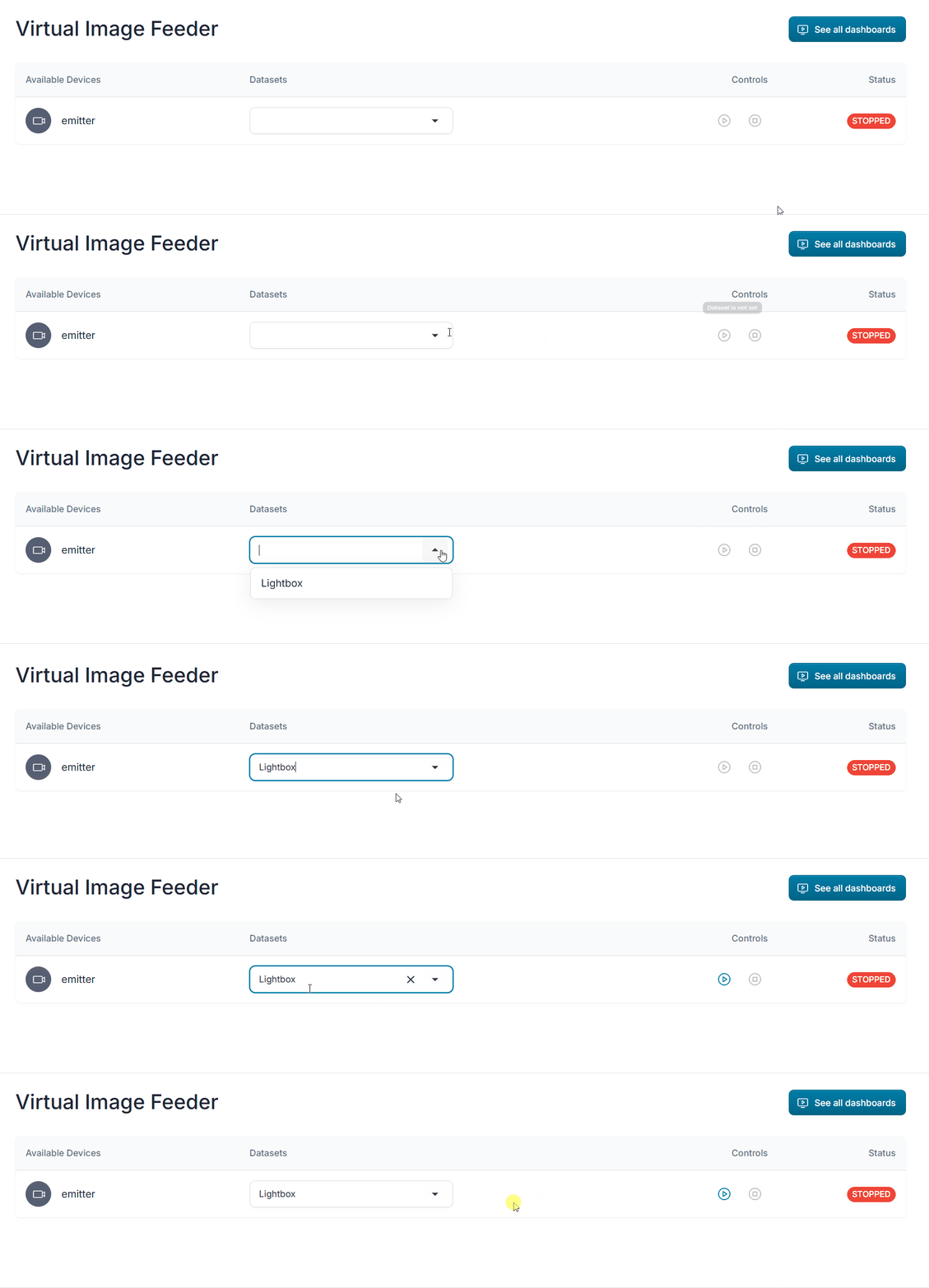
Use play and stop buttons to start/stop image playback.
⚠️ Ensure dataset is selected before starting playback. This action is forbidden until dataset is selected.
See playback status - streaming/stopped.
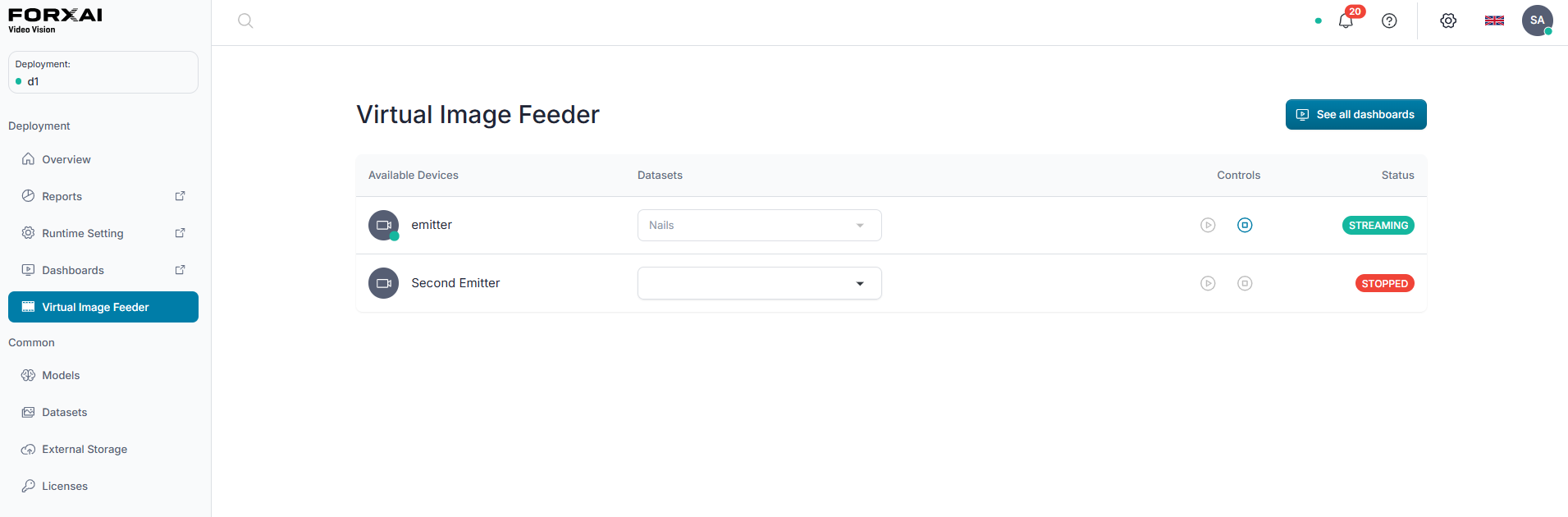
⚠️ Restart of already started dataset will stream images from beginning in alphabetical order.