
Appearance
Licenses
The following article describes how to validate the Video Vision software license.
Prerequisites
You can activate the license after you complete the following prerequisites:
Order the product and the license.
Obtain the product key.
Note: The LMS server sends an email notification that contains the product key when you order the product and license, as illustrated in the following example:
Sun 13/06/2024 15:35
From: lms-system-notification@konicaminolta.com To: DMY_20240602@example.com
Dear DMY_20240602,
An e-licence has been created from the following order, the details are below:
Order Overview
Customer: DMY_20240602
Contact: DMY_20240602@example.com
Entitlement Type:
SO#:
Products Ordered
Product Key: product_key
Product Name: #
Description: #
Quantity: 1
Status: Enable
Start Date: 06/13/2024 End Date: 06/13/2025
Equipment ID: Reference
EID: eid_key <- this is the key you will use for authentication
Follow the steps given below to activate and manage your entitlement(s):
For Off-line activation, please access the Entitlement Management System at
http://konicaminoltainc.prod.sentinelcloud.com:80/ems/customerLogin.html?siteLanguage=en
Log in using the EID or product key provided above.
© Konica Minolta, Inc. All Rights Reserved
License activation
License activation is a one-time, manual procedure.
Follow these steps:
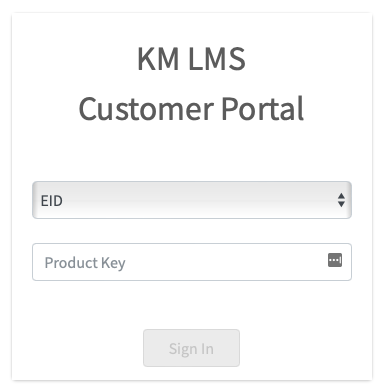
Go to the LMS Customer Portal.
Click the drop-down and select EID.
Enter the product key specified in the email and click Sign In.
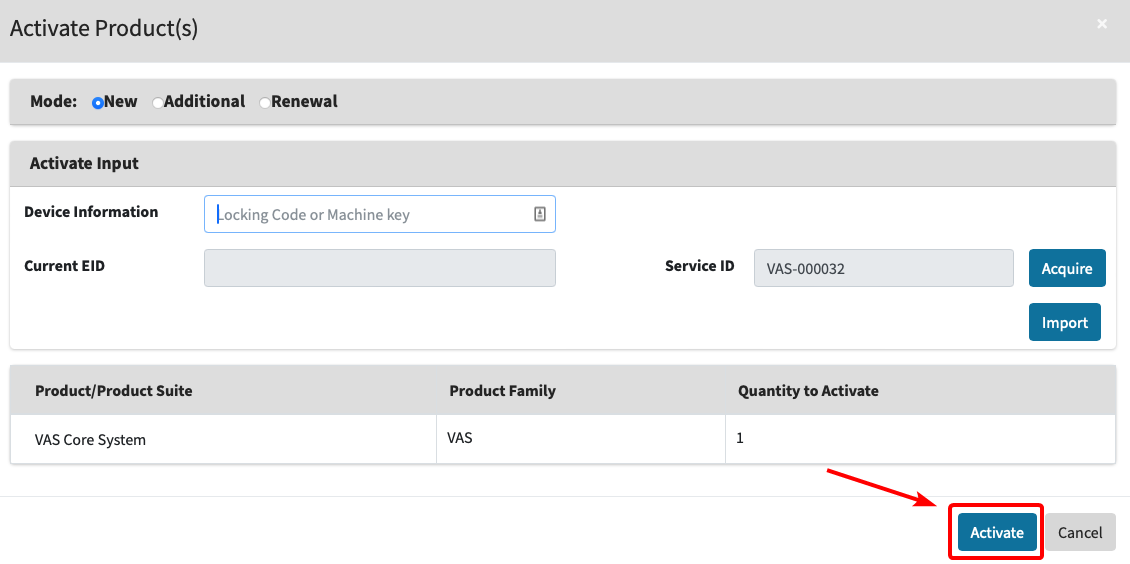
- Verify the correct products are checked, then click Activate:
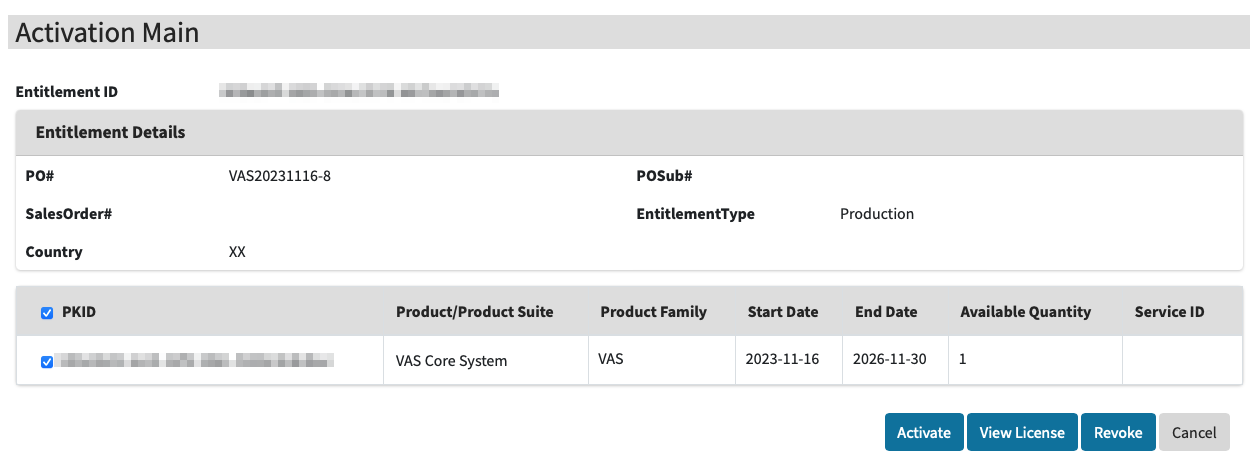
⚠️ The license is limited to a single use. Once activated, it cannot be reused for other devices.
The Activate Products page appears:
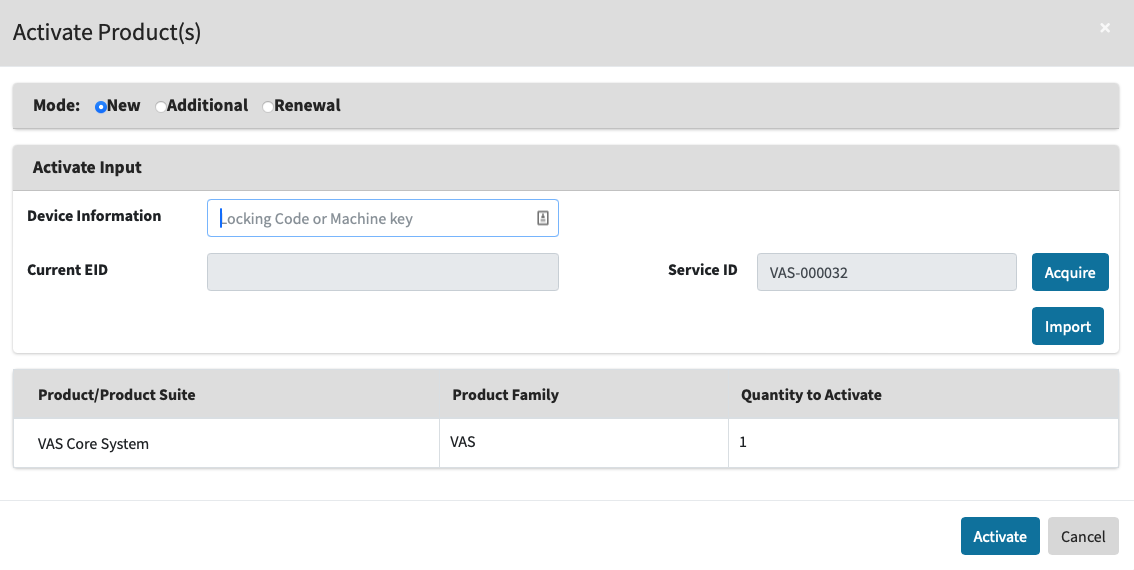
- Copy the Fingerprint value you received during the installation process. You can also obtain the fingerprint value from an already running machine at: /hub/licenses tab.
I don't know my Fingerprint
If you didn’t record the Fingerprint value during the installation, follow these steps:
Connect to the server via Terminal:
shellssh vasadmin@x.x.x.xEnter the password
vasadminSwitch to root privileges:
shellsudo -ithen enter the password again.
Enter the following command:
shell./termix --fingerprintCopy the machine fingerprint.
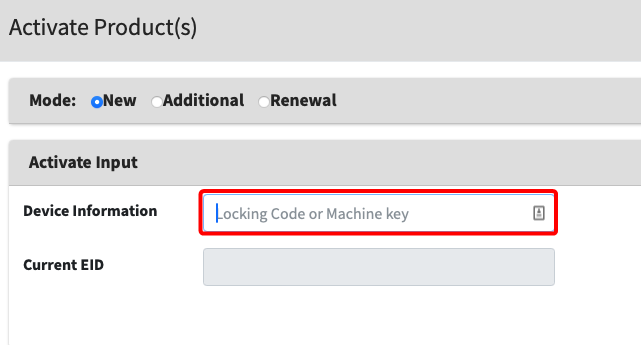
- Return to the LMS activation system, then paste the Fingerprint value into the Device information field.
- Click the Acquire button to assign the machine Service ID if you are creating a new license.
💡
The Service ID is unique to every device and service running a FORXAI license.
- Click Activate.
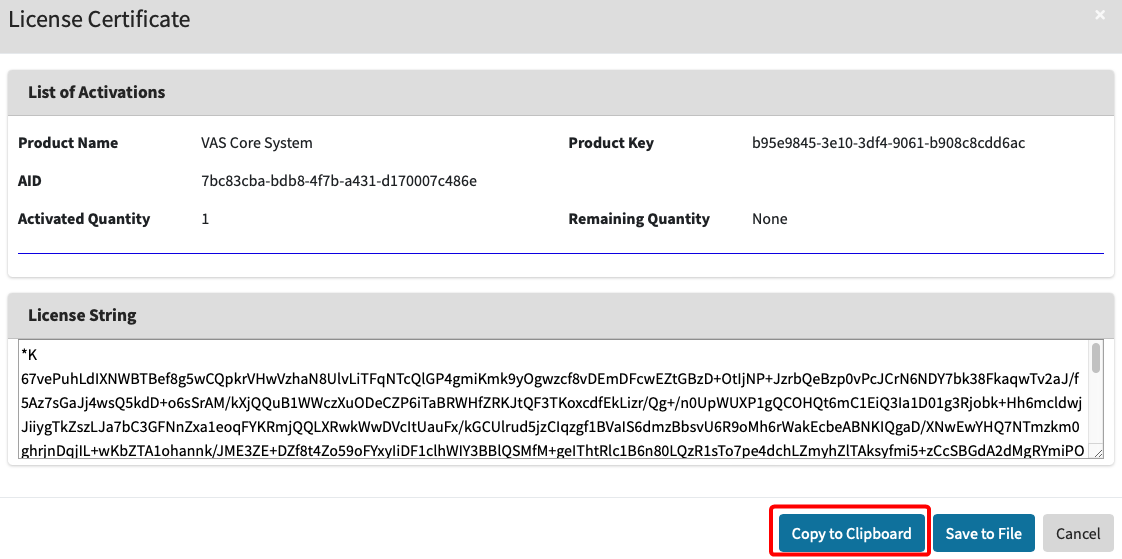
Click View License.
Click Copy to Clipboard to copy the License string.
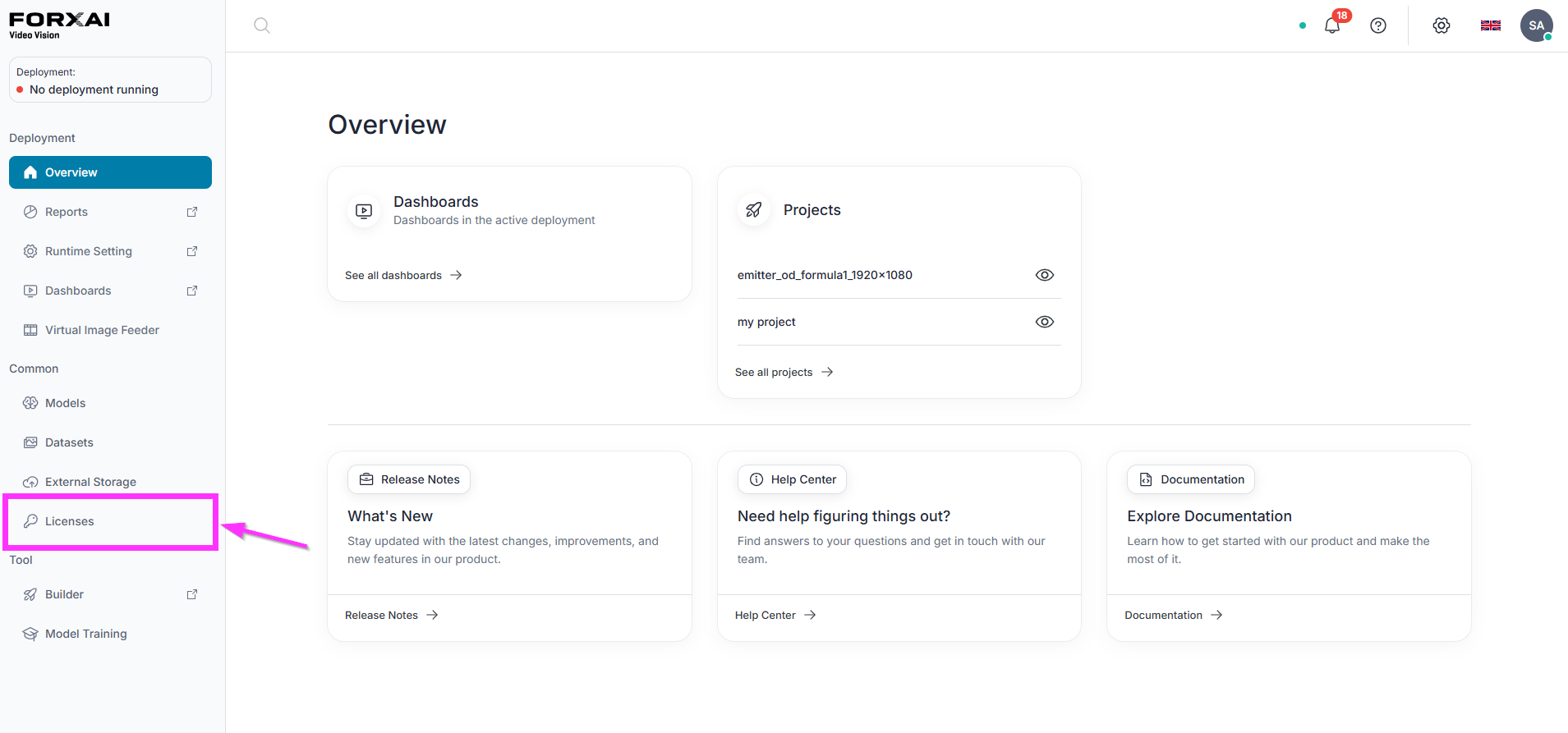
Return to the FORXAI dashboard
Go to the Licenses tab.
- Paste the License string into the License field, then confirm the activation by clicking the Submit button.
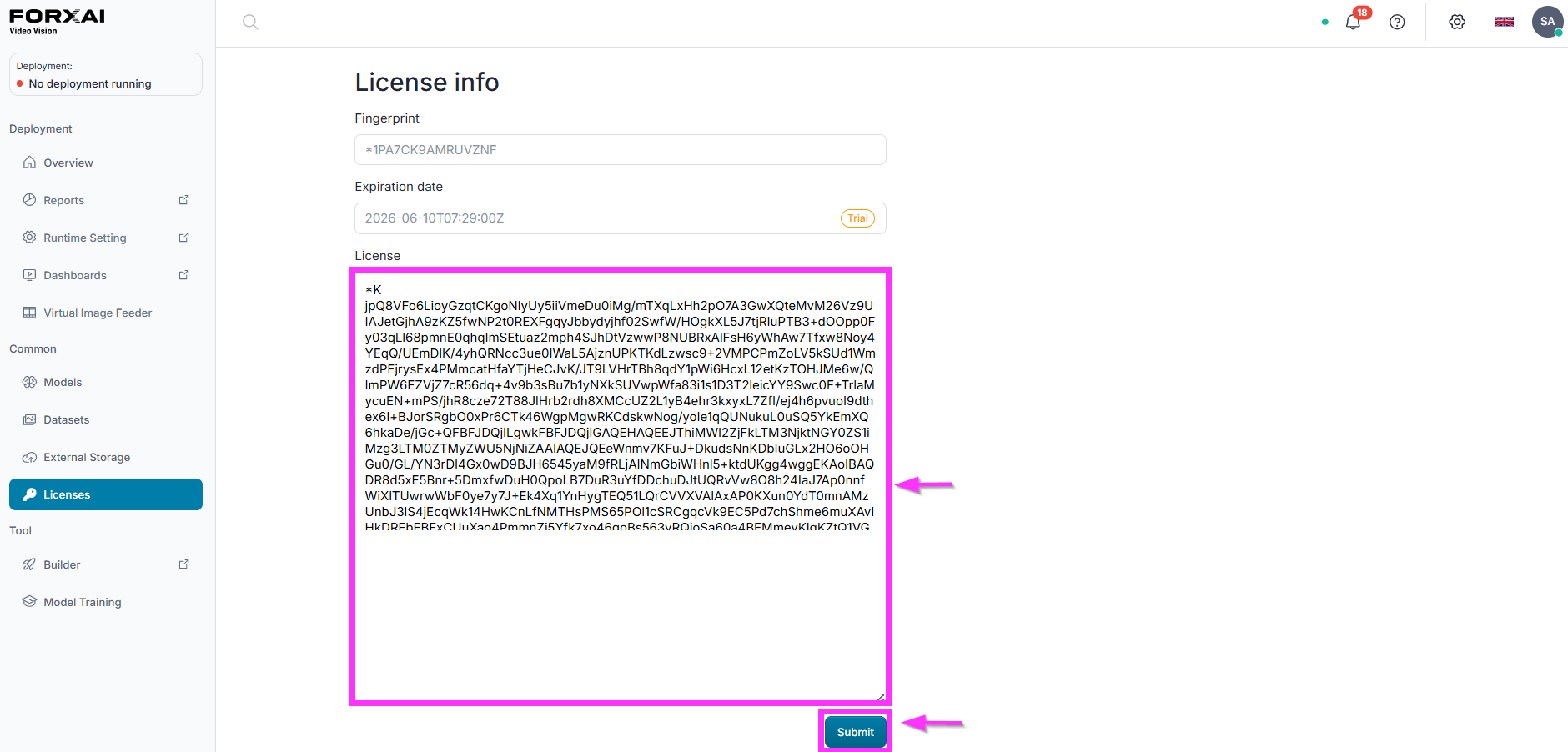
You have successfully activated the license.
Expired license
If the license has expired, the platform will no longer operate as expected. To avoid service interruptions, you need to Renew the license.
