
Appearance
Augmentation
Data augmentation refers to a set of functions used to artificially increase the diversity of the training dataset by generating augmented versions of existing samples. These transformations are applied randomly during training without changing the underlying labels or meaning. This allows the model to encounter a broader range of examples, which in turn improves generalization — the ability to perform well on unseen data. Additionally, it reduces the chance of overfitting — where the model memorizes the training data instead of learning the underlying problem.
Common augmentations include simple functions like rotation, flipping, color jitter, and resizing.
Why this matters
- Robustness: Helps the model learn features invariant to changes like lighting, orientation, or noise.
- Overfitting Prevention: Reduces the risk of the model memorizing exact training examples by constantly varying them.
- Data Efficiency: Simulates more data without the cost of collecting and annotating new images.
Available Augmentations
Select augmentations from the dropdown list to add them to your pipeline. You can configure parameters for each added technique.
⚠️ Warning
Some transforms can change the information your model needs to learn. For example, color jitter should not be used when color is important for detection. Choose augmentations that do not remove key features.
Random Color Jitter augmentation
Randomly adjusts the brightness, contrast, saturation, and hue of an image, applying these transformations in a random order. All transformations expcept hue follow the same general rules for bounds and clipping as Brightness. In practice, brightness, contrast, and saturation are typically kept close to 1, since values near the dataset extremes tend to produce unrealistic images; Hue follows its own bounded range and should be adjusted conservatively. The Random Color Jitter augmentation is useful for handling varying lighting conditions.
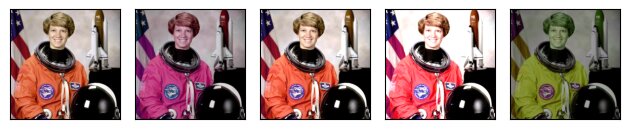
- Brightness: The lower and upper bounds define an interval from which a
brightness_factoris uniformly sampled. The input image is then multiplied by thebrightness_factor. If the bounds are equal, the factor is fixed (no randomness).- Setting both bounds to 1 leaves the image unchanged.
- Setting both bounds to 0 produces a completely black image.
- Setting both bounds to 1.5 increases brightness by 50%.
- Setting both bounds to the dataset maximum (255 for 8-bit images) clips all non-zero pixels to that upper bound.
- Contrast Defines an interval [Lower bound, Upper bound] for contrast_factor, which controls the difference between bright and dark pixels. It follows the same general rules as Brightness: a factor of 0 produces a flat gray image, 1 leaves the image unchanged, and higher values increase contrast.
- Saturation: Defines an interval [Lower bound, Upper bound] for saturation_factor, which controls the intensity of colors in the image. Values below 1 reduce saturation, 1 leaves the image unchanged, and values above 1 increase saturation.
- Hue: Defines an interval [Lower bound, Upper bound] for hue_factor, where values must lie between -0.5 and 0.5. Hue shifts the dominant color of the image around the color wheel. A factor of 0 leaves the image unchanged, while ±0.5 corresponds to a 180° rotation. Hue is the only parameter with bounds that differ from the other ColorJitter parameters.
Random Gaussian Noise augmentation
Adds random noise to the image. Simulates camera sensor noise or low-light grain.
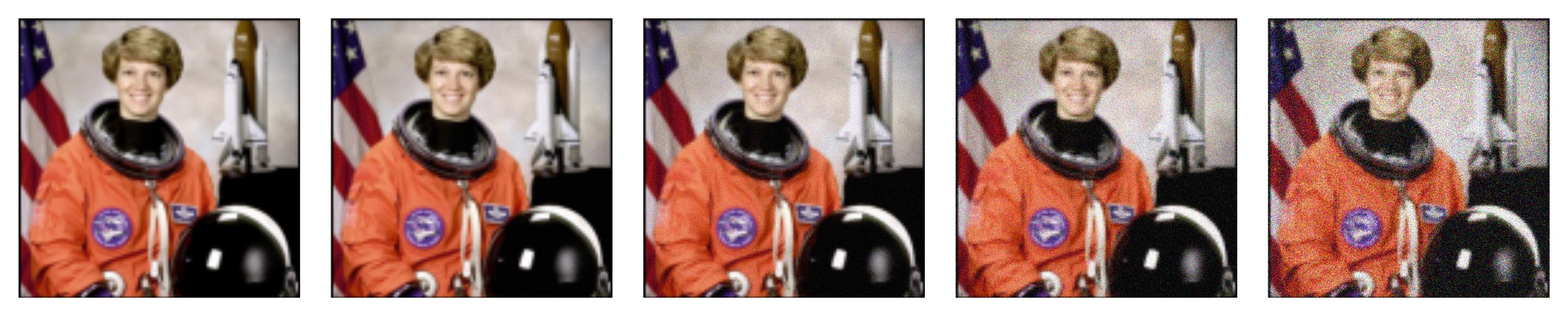
- Mean: The mean value of the gaussian noise.
- Standard deviation: The standard deviation of the gaussian noise.
- Clip: Checkbox to enable clipping of the values.
Random Horizontal Flip augmentation
Horizontally mirrors the image. Good for objects that don't depend on left/right orientation.
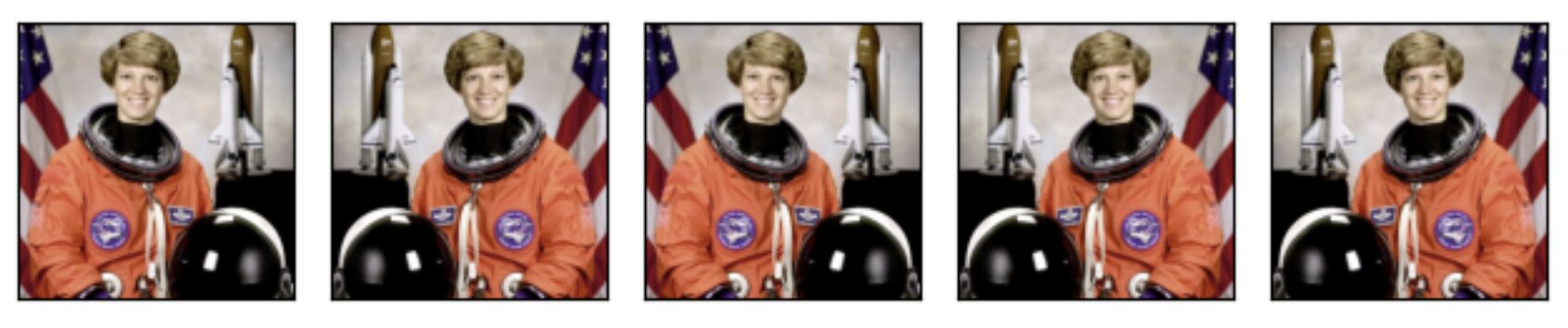
- Probability: The probability of the image being flipped (e.g., 0.5).
Random Resized Crop augmentation
Crops a random portion of the image and resizes it to the target input size. Forces the model to focus on different parts of the object.

- Resize size: Specify the target
HeightandWidth. - Scale: Specifies the lower and upper bounds for the random area of the crop, before resizing. The scale is defined with respect to the area of the original image, meaning they control how large a portion of the image the crop will contain.
- Ratio: Specifies the lower and upper bounds for the aspect ratio (width, height) of the crop. This controls the shape of the crop before resizing. Extreme ratios stretch or squeeze the content when resized, while setting it to the original image’s ratio preserves proportions.
- Interpolation mode: Select the interpolation method (e.g.,
bilinear). - Antialias: Checkbox to enable antialiasing.
Random Rotation augmentation
Rotates the image by a random angle. Helps when objects can appear at various orientations.

- Degrees: Specify the
Range degree. - Interpolation: Select the interpolation method.
- Center: Optional center of rotation, (x, y). Origin is the upper left corner. Default is the center of the image.
- Fill: Pixel fill value for the area outside the rotated image.
Random Vertical Flip augmentation
Vertically mirrors the image. Use only if up/down orientation doesn't matter (e.g., top-down views).
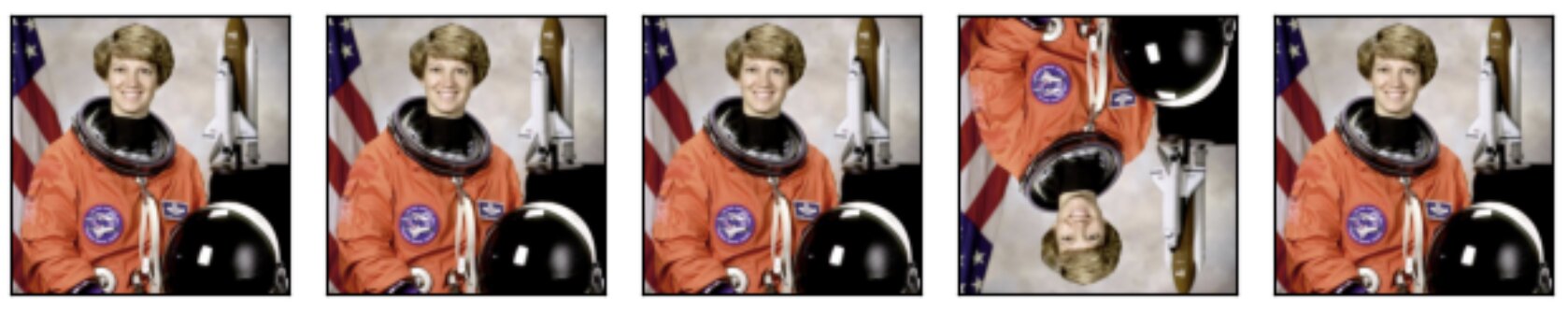
- Probability: The probability of the image being flipped (e.g., 0.5).
How to configure
- Select the type from the dropdown (e.g., Random Horizontal Flip).
- Click + Add Item to choose an augmentation.
- Adjust specific parameters (like probability or intensity) if available.
- Order of the augmentations can be adjusted also after they are creted and configured.