
Appearance
Models
In this article, you will learn how to provide the Video Vision application with a machine learning model. The machine learning models are trained before the deployment, so you should have a prepared model in mind for each deployment.
Local models
Local models page is part of the Hub and is used as a management tool for local models stored on your machine. This is not connected in any way to projects which are in builder.
Navigate to https://x.x.x.x/hub/models.
| Customer | Model | Version | Backend | On Remote | Download |
|---|---|---|---|---|---|
| FM-BCZ-Trial | no_smock_classifier | 5 | triton | ☁️ | 📥 |
| Demo-BCZ-Trial | nails_model | 6 | torchserve | ☁️ | 📥 |
The page displays a list of your local models with options to import, download or remove them. The list also indicates whether the model is already available on remote storage.
Filtering
There are two possible filtering options:
- model name
- customer
Use them to limit view to the models you are looking for.
Delete model
You can select one or multiple local models for deletion.
Download trained models
Models that have been trained and deployed via the Model Training workflow (as described in the Training section) will appear in this list.
To download these models (or any other local model) to your computer for backup or external use:
- Find the model in the list.
- Click the Download icon 📥 in the corresponding row.
Import model
There are two options to load models into the platform:
- Upload from local machine - Import a model file (.zip format) that you have stored locally on your computer.
⚠️ Warning
Ensure the filename matches exactly what was defined during deployment. It must not contain any system-added artifacts like
(1)(e.g.,model (1).zipis invalid; rename it tomodel.zip). - Download from remote storage - Retrieve models from the FORXAI database or other remote storage locations
ℹ️ Important: Importing or downloading a model only adds it to your local machine. To actually use the model in the platform, you need to go to the builder and activate it within your project.
Configured models per project
When you want to use models in project, you need to visit /models page in builder application. For the first usage you will not see any models but there is 3 ways how you can add them.
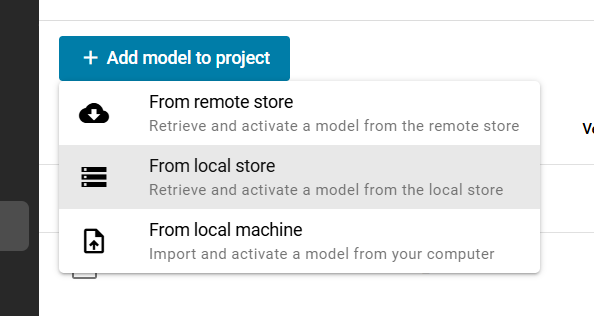
Retrieve the model from remote store
The model from the remote store is added to the list of available models and can be used within the project.
To add the AI models from remote store perform the following steps:
Click the Retrieve remote models button.
Click the Customer list dropdown and select the appropriate customer.
Click the Select model dropdown and choose the model with the latest version.
Click Download.
The model is added to the list of available models and can be used within the project.
💡 Tip
If you don't have a model file prepared and can't find it in the FORXAI database, contact the Video Vision team at vas_project_team@konicaminolta.eu.
Import model from local storage
Whenever you create a model using model training and deploy it, add models on the Hub (see: Local models), or if you downloaded remote model and accidentally removed it from project you can bring it back using the Import from local storage function.
💡 Tip
Only models which are visible under hub model page are displayed here.
Import the model from local machine
If you have the AI model prepared in a local file, click the Import model button, then select the appropriate file.
💡 Tip
The model file must be a Model Archive (.mar / .zip) file type.