
Appearance
Use dynamic camera profiles (Basler)
Before the release 3.2, camera configuration was effectively fixed after setup. You can now switch Basler GigE camera profiles at runtime by storing profile files on the platform, setting defaults on the device, and controlling changes from the Flow Builder (including via tunables).
This guide walks you through File Storage in the hub, Basler device settings, and the Dynamic profile flow node.
Use this guide when:
- You need different Basler camera parameter sets (profiles) during runtime, not a single static configuration.
- You want profiles uploaded and managed as platform assets, then referenced from devices and flows.
⚠️ Current limitation: Only Basler camera profiles are supported. Other camera types or profile formats are not supported yet.
Prerequisites
- FORXAI Video Vision (FVV) deployed and accessible (including Hub).
- A Basler GigE camera integrated with the platform. See the Basler GigE Camera reference for hardware and baseline setup.
- Permission to use Hub (File Storage), Devices, and Flow Builder as required by your role.
Steps
1. Upload and manage profiles in File Storage (Assets UI)
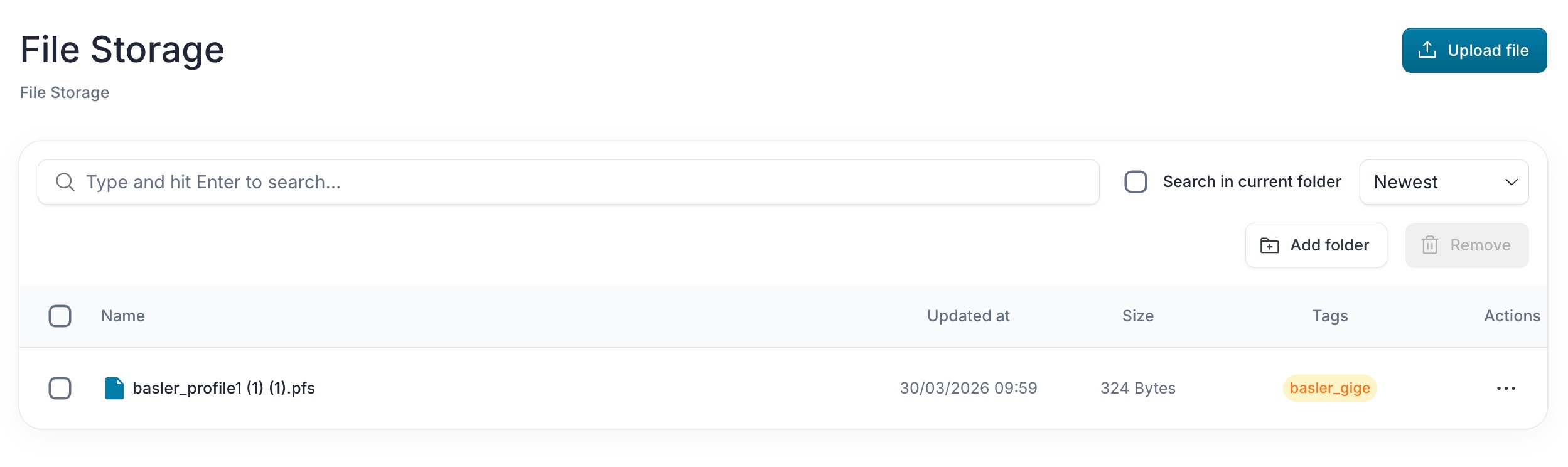
File Storage is the hub area where you upload files to the platform. It behaves like organized file storage and can recognize Basler camera profile files among supported uploads.
Open File Storage in one of these ways:
- From the Hub, navigate to File Storage.
- From Devices, use the link that opens the Assets UI (same File Storage experience).
Upload your Basler profile files the same way you add other files. The upload area is labeled File Storage, and the system will automatically recognize Basler profile files.
Keep profiles available here so flows and devices can reference them by path in later steps.
2. Configure the Basler device with a default profile
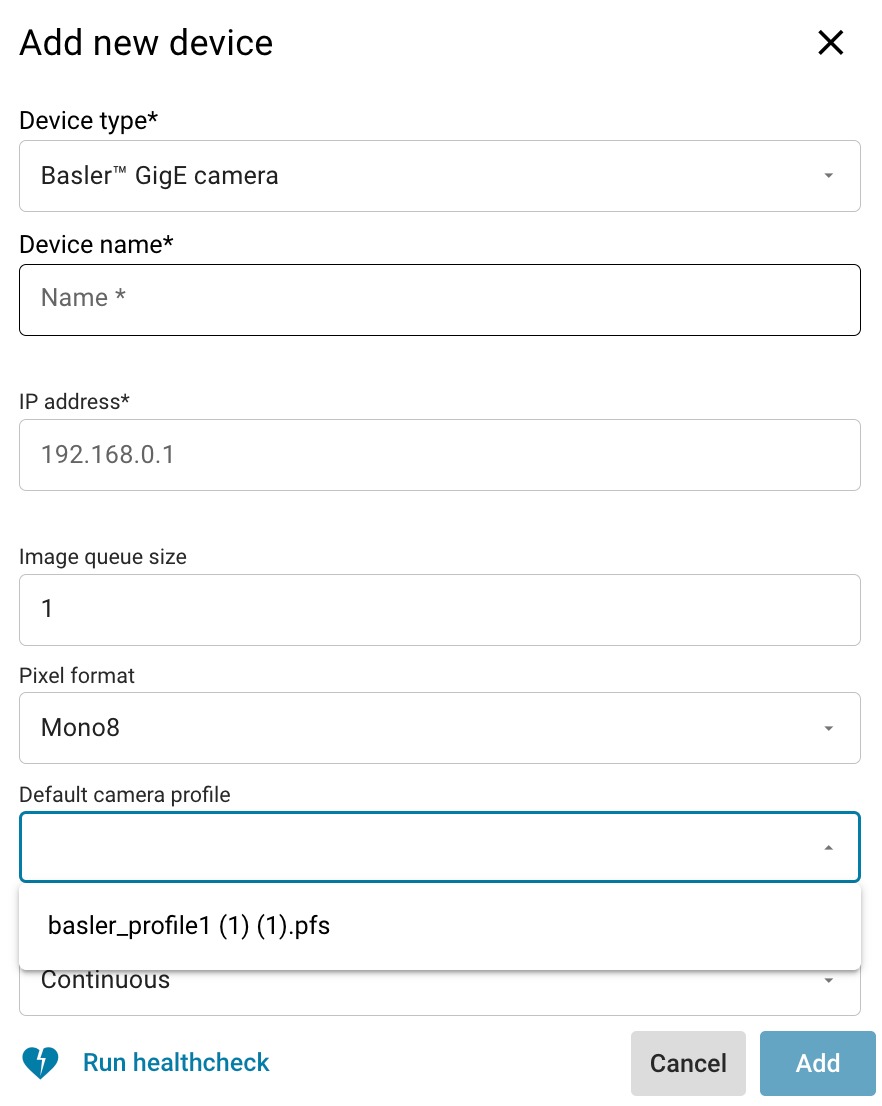
Set which profile the Basler device should use by default in its configuration. You can preview the feed to confirm that the applied profile produces the expected image.
- Go to Devices and open your Basler GigE device configuration.
- Set the default profile to the profile you want when no dynamic switch has been applied (or as your baseline).
- Once the device is added, use the preview to verify exposure, geometry, and other settings. Click it to view in fullscreen.
For field-level detail on the Basler device, see Basler GigE Camera.
3. Add the Dynamic profile node in the Flow Builder
In the Flow Builder, add the Dynamic profile node where your application should switch profiles at runtime. Connect it according to your process (e.g., after decisions, triggers, or state changes).
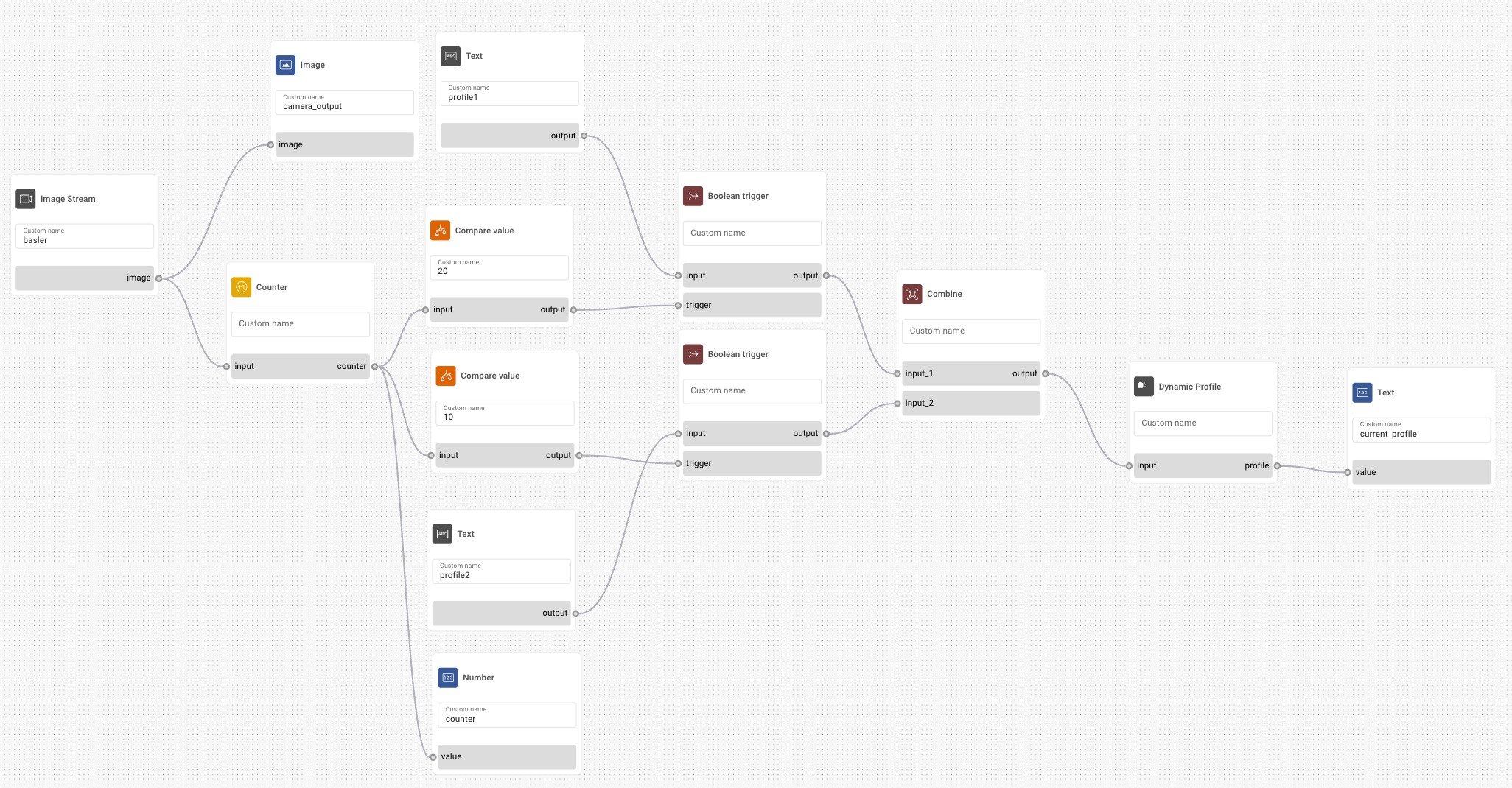
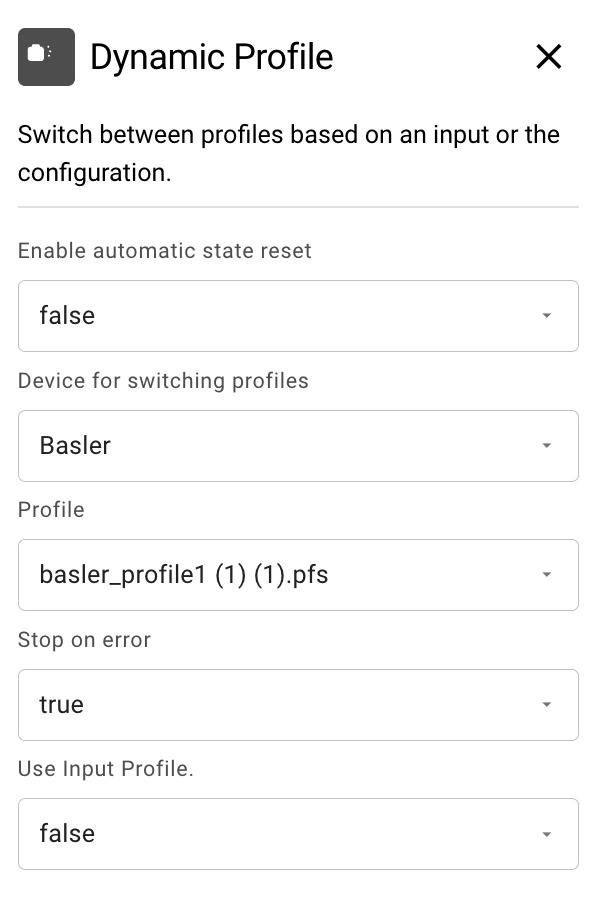
Configure the node using the options below:
| Option | Description |
|---|---|
| Device for switching profiles | Basler GigE device whose profile will change. Choose the camera instance that should receive the new profile. |
| Profile | Profile file to switch to, selected from platform assets tagged for Basler GigE (same pool as File Storage). |
| Use Input Profile | If enabled, the runtime input profile is used; if disabled, the profile selected in this node is used instead. |
| Stop on error | If enabled, a failed profile switch stops the running deployment. |
| Enable automatic state reset | When the flow must reset node state, this allows the node state to be reset accordingly. |
For full option descriptions, see Dynamic Profile. The Flow Builder overview explains how flows, devices, and deployments fit together.
4. Deploy and optional tunables
After the flow is configured, deploy it as usual. When the Dynamic profile node is triggered, it applies the chosen profile to the selected Basler device according to your settings.
You can also drive profile-related behavior through Tunables where your setup uses tunables with flows—dynamic profiles work in that context as well.
Verification
- In File Storage, the Basler profile files you need appear and remain available at the paths you reference.
- Device preview shows the expected image for your default profile.
- After deployment, triggering the flow path that contains Dynamic profile updates the camera to the configured profile without errors (or handles errors according to Stop on error).
Related links
- Dynamic Profile node — reference for node options and behavior.
- Basler GigE Camera — device setup, networking, and Basler-specific options.
- Flow Builder — visual editor, flows, and deployment concepts.
- Tunables — runtime parameters and integration with flows.
- Basler docs