
Appearance
Flow Builder
The Flow builder is a visual representation of the application’s behavior. It is a tool for wiring together the application’s business logic, hardware devices, APIs, and other services.
It is a network of individual logic units called “nodes.” Each node has a pre-defined purpose; it is given some data, it does something with that data, and then it passes that data on to the next node. The network is responsible for the flow of data between the nodes.
Node
Nodes are the building blocks of Video Vision business logic. Each node has a specific purpose and use.
Node value types
Each node has connection points that can have many different value types.
| Value type | Description |
|---|---|
| Any | Accepts all value types. |
| Bool | Can be one of two values - true/false, one/zero. |
| Datetime | Date and time. |
| Image | Standard digital image, generally from a camera. |
| ImageSvg | Image that contains polygons. |
| Number | Any whole or decimal number. |
| PointList | An array of multiple points mapped from X, Y coordinates. Used to locate objects or defects. |
| Polygon | Any two-dimensional shape with three or more sides, used for outlining objects. |
| Polygon List | A collection of multiple polygons in the image. |
| Prediction | A complex value that contains multiple attributes:
|
| Table | A grid table structured in rows and columns with headers. |
| Undefined | Dynamically changes to the value of the input. |
| String | Any text (single words and sentences). |
Creating a flow
Flows dictate the functionality and the direction of the stream of data going from the camera to the application.
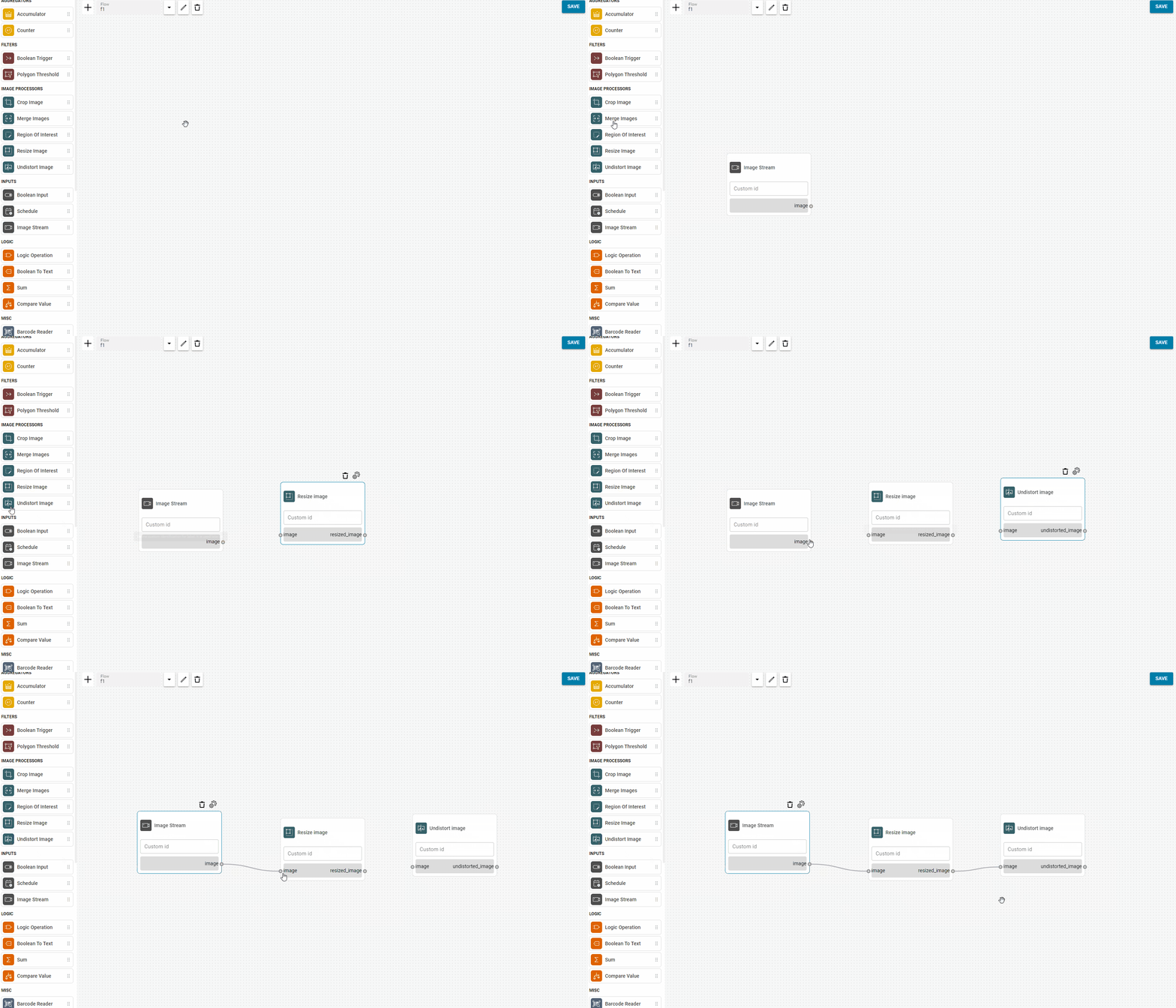
To create a flow, drag and drop the individual nodes onto the canvas, then connect them in the appropriate order.
⚠️ Warning
Any actions and changes made in the editor need to be saved by clicking the Save All button.
Unsaved changes when leaving
If you try to leave the Flow Builder (for example by navigating elsewhere in the application) while there are unsaved changes, a dialog appears. You can choose to save your work, discard the changes and leave, or cancel and stay on the page.
Older or imported projects
If you import or open a project that was created in an older version of Video Vision, its flow may differ from what the current Flow Editor expects. When the Flow Editor loads, it runs validation logic on the project and can automatically repair broken or outdated parts of the flow. Those repairs happen during page load, so you may not have edited anything by hand. Until you save, the editor still treats the flow as modified, so you may see the unsaved-changes dialog when you try to leave even though you only opened the project. Use Save All if you want to keep the repaired flow, or review the result before discarding it.
Dynamic node
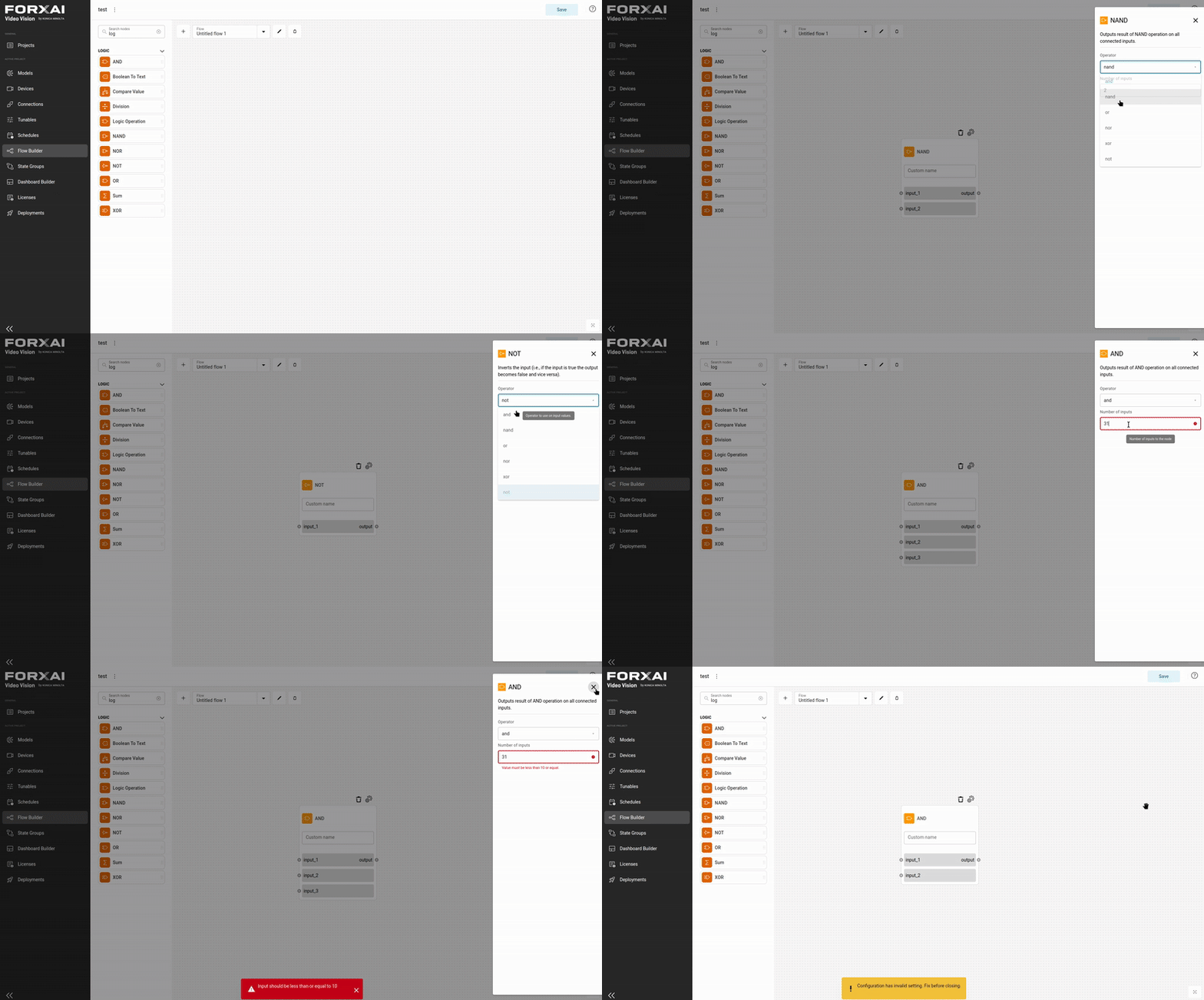
Nodes feature dynamic behavior, adapting their visual appearance and input/output configurations based on established connections and configuration changes.
The system validates nodes automatically whenever their configuration is modified or a new connection is created. If invalid changes are detected, the system prevents saving these modifications or automatically reverts to the last valid state.
Flow templates
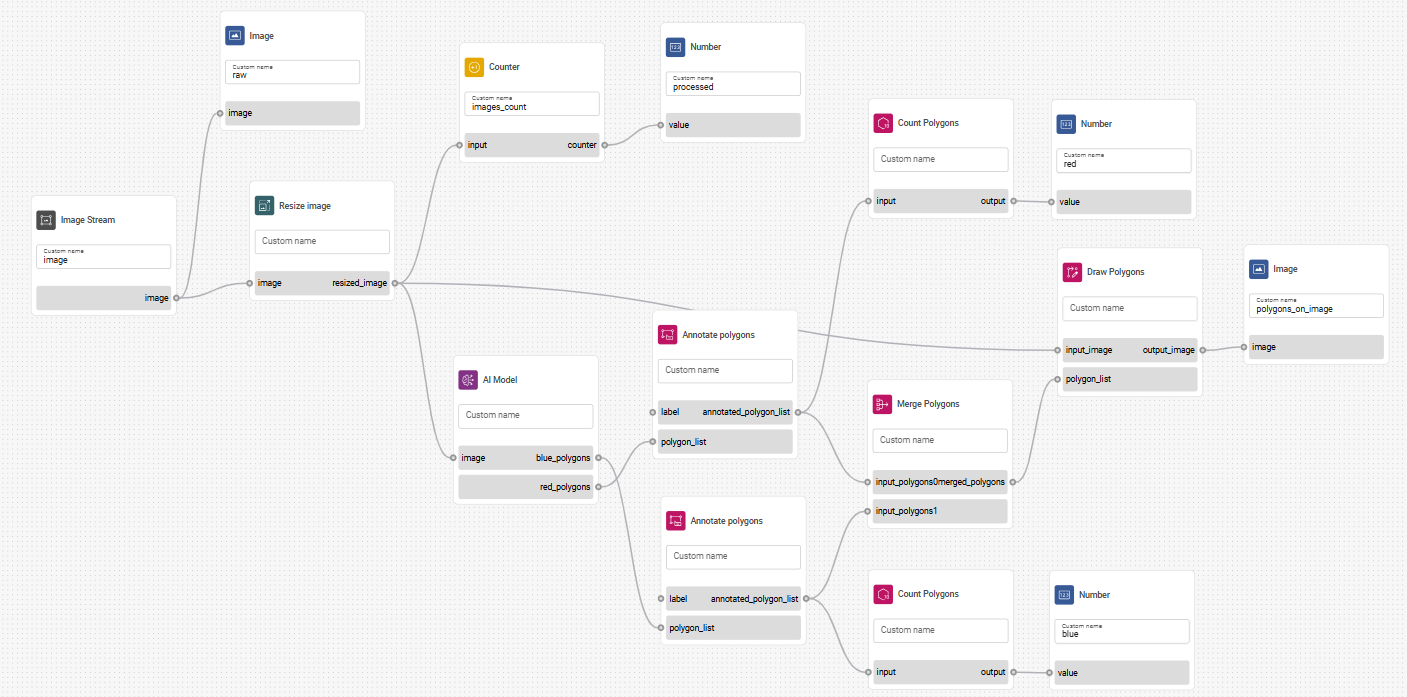
Here, you can find examples of finished flows to use as templates for your solution.
Defect detection template
Additional Features
- State Groups - Learn how to manage application states.